Zay Aung

Dynamics 365, Power Platform, and everything in between

Tag: Power Apps

  • Add the Contactability Grid (Communication Tab) to Custom Forms in Dynamics 365

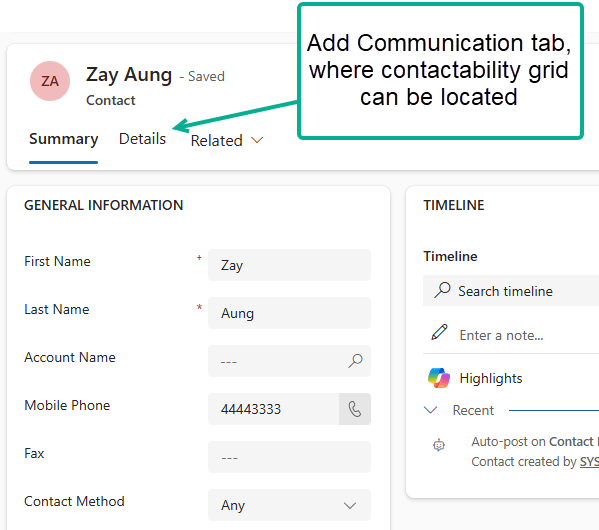
    In this post, I’ll walk you through how to add the Contactability grid to a custom form in Dynamics 365. While this grid is included by default in Customer Insights – Journeys, you may need to add it to other applications like Customer Service Hub.
    1. What is the Contactability Grid?
    2. Use Case Example
    3. Access the Form Designer
    4. Security Permissions Reminder

    What is the Contactability Grid?

    The contactability grid is a powerful tool that allows you to manage consent across every channel and line of business in your organisation. It provides a comprehensive view of customer communication preferences, making it easy to see and update consent settings for email, SMS, and custom channels.

    Use Case Example

    Consider a scenario where customers call your contact center to manage their communication preferences. By adding the contactability grid to your Customer Service Hub forms, agents can quickly update these preferences without switching applications.

    Access the Form Designer

    The steps are pretty simple, same as what you would design the Form, and add components.

    First, Open the form in Power Apps where you want to add the Contactability grid. Add a 1-column tab to the form canvas – for example, name it Communication. Additionally, make sure to select Expand this tab by default and Expand first component to full tab.
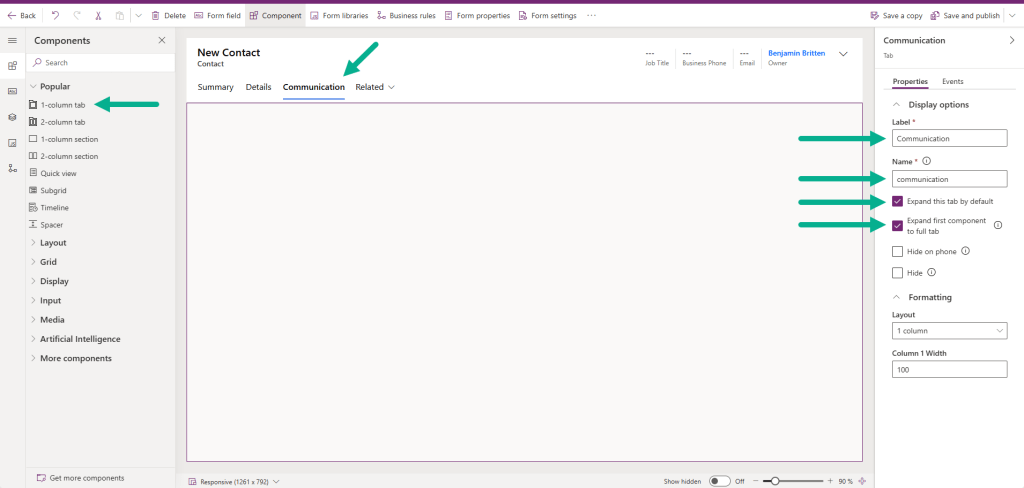
    Fig: Add Communication tab to Contact Form

    Next, add 1-column section to Communication tab.
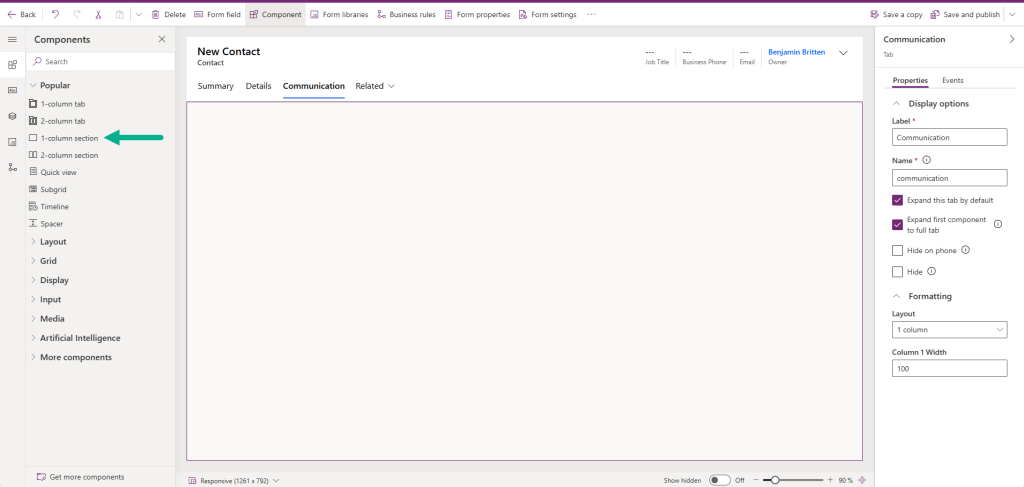
    Fig: Add section to Communication tab

    Next, we’re going to add Contactability grid to the Form. If you cannot find it in More components section, click Get more components and add it.

    Fig: Add Contactability grid to Form

    Once added, select which platforms the Contactability grid should be available for (Web, Movile, Tablet) and click Done.
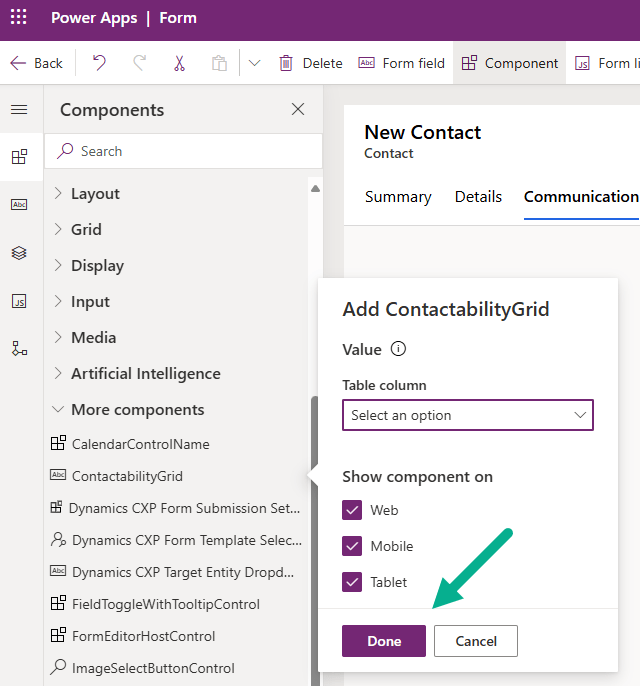
    Fig: Select Platform to Show Component

    Once added, you’ll see Contactability grid added to the Form. Click Save and publish.
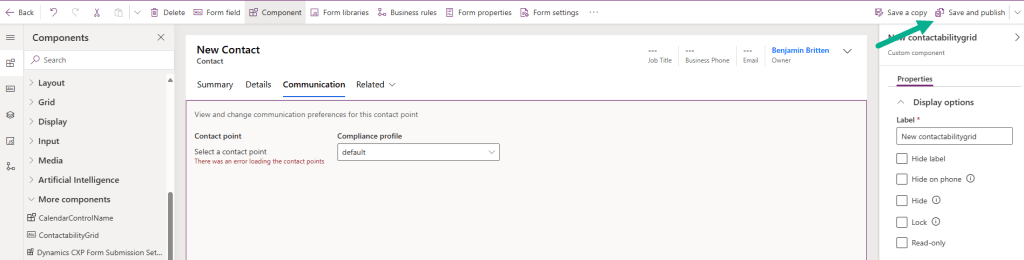
    Fig: Save and Publish Contact Form

    Finally, you will see Communication tab with Contactablity grid – the same as what you’d see in Customer Insights – Journey – Contact form by default. This will allow other application or team – for example, Customer Service team to update Contact’s contactability preference.
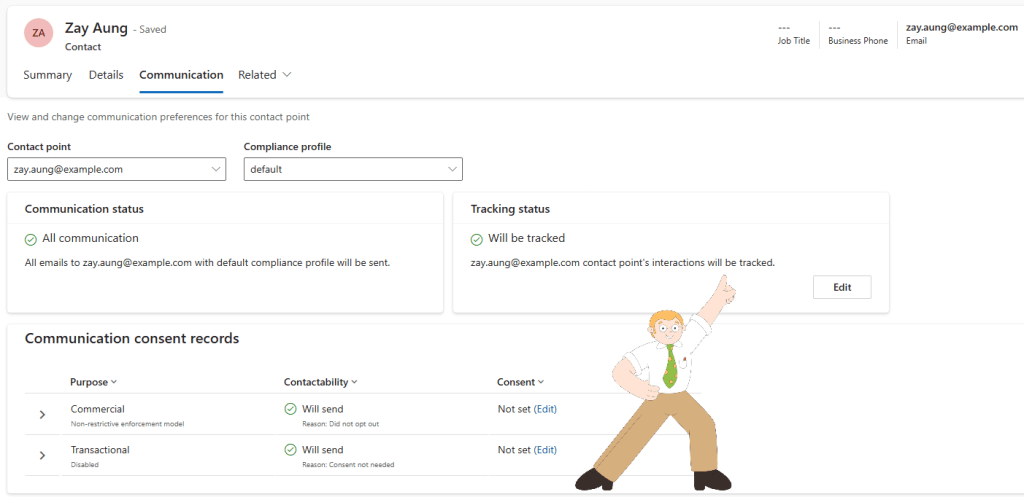
    Fig: Added Communcation Tab with Contactablity Grid

    Security Permissions Reminder

    Update: One thing to call out – make sure users have the required security permissions to see or interact with the Contactability control. Thanks to Megan V Walker for highlighting this! If user is not given right priviliges, the below error will be prompted.
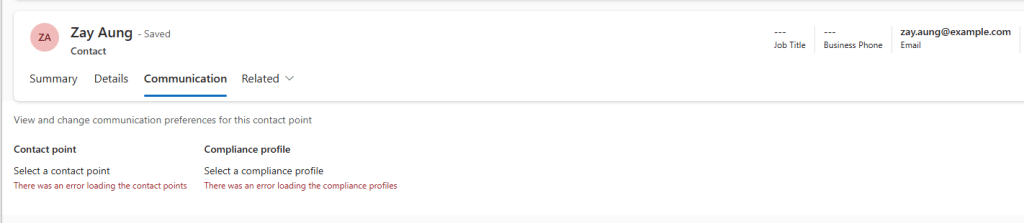
    Fig: The error users will encounter without the right privileges

    Ensure the relevant privileges are granted for the below five tables covering Email and SMS channels (and any custom channel tables, if applicable).
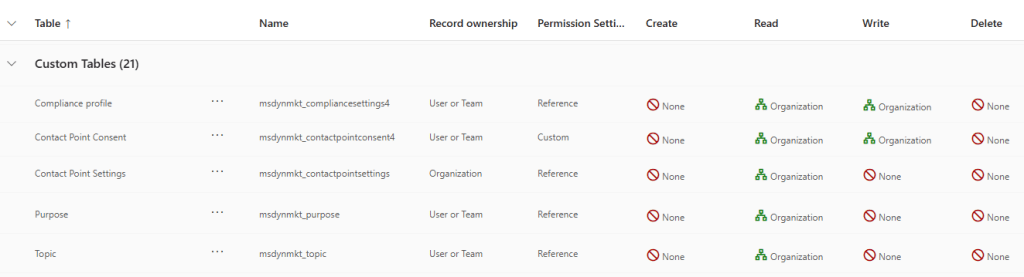

    Fig: Security Privileges
  • Sending Internal Email Upon Form Submission: Customise Real-time Marketing Form (Part 1 of 4)

    Customise Real-time Marketing Form

    In this blog series, I’ll walk you through how to send emails to internal users or teams based on a contact’s Location – for example, if the location is NSW, the system will send an email to the NSW Customer Service Team – upon Form submission in Real-time Customer Insights – Journeys. We’ll achieve this by using a Custom Trigger in combination with Power Automate.

    Note: Although this example is based on Form submissions, the same concept applies to other trigger points like Event Registrations.

    Series Overview

    I’ve broken this topic down into the following parts:

    1. Customise Real-time Marketing Form <- You are here
    2. Configure Custom Trigger
    3. Build Power Automate Flow
    4. Create Real-time Journey

    This is the first post of this series and will focus on Customise Real-time Marketing Form.

    Create Custom Columns in Dataverse

    Before customising the Form, let’s create some columns in Dataverse to store the internal email addresses.

    I won’t go into detail on how to create Dataverse columns using Power Apps, as there are already plenty of well-documented resources available.

    As best practice, create a Solution first and then add the new columns within that solution to enable easy packaging and deployment across environments.

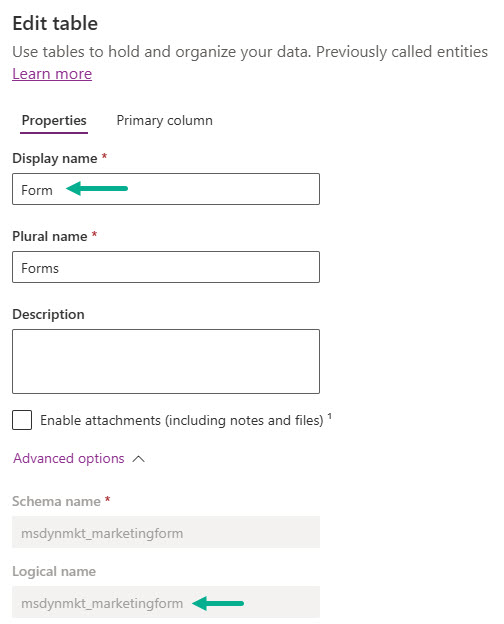
    Note: Make sure you create in the correct Form table i.e., Logical name = msdynmkt_marketingform.

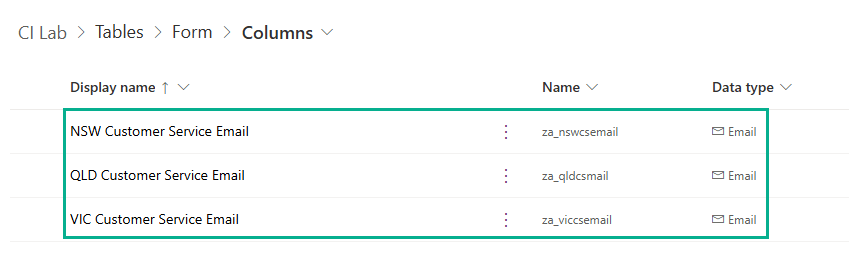
    In this example, I’ve created the following three columns – all are the same configuration: Data type = Single line of text and Format = Email. Column names:

    • NSW Customer Service Email
    • QLD Customer Service Email
    • VIC Customer Service Email

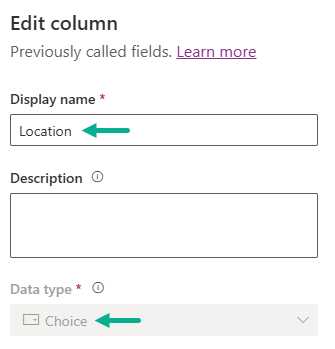
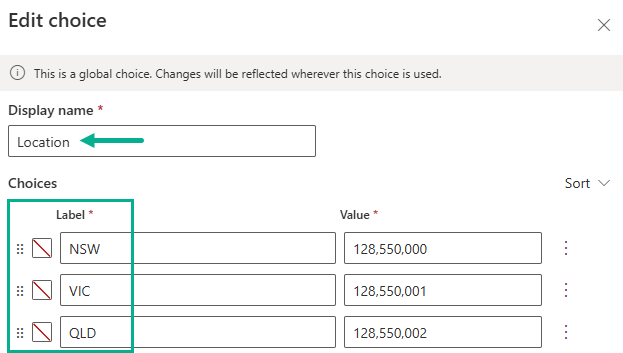
    Additionally, we will also create a custom column in the Contact table called Location where Data Type = Choice, which will store the Location of the Contact.

    Add Columns to the Form

    Now, let’s include the three email columns in the Real-time Marketing Form.

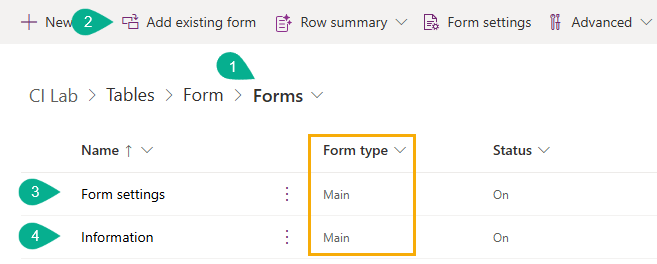
    1. Click Forms in Form table
    2. Click Add existing form
    3. Add Form settings
    4. Add Information

    Note: Make sure you select Form type = Main

    Configure Form Settings

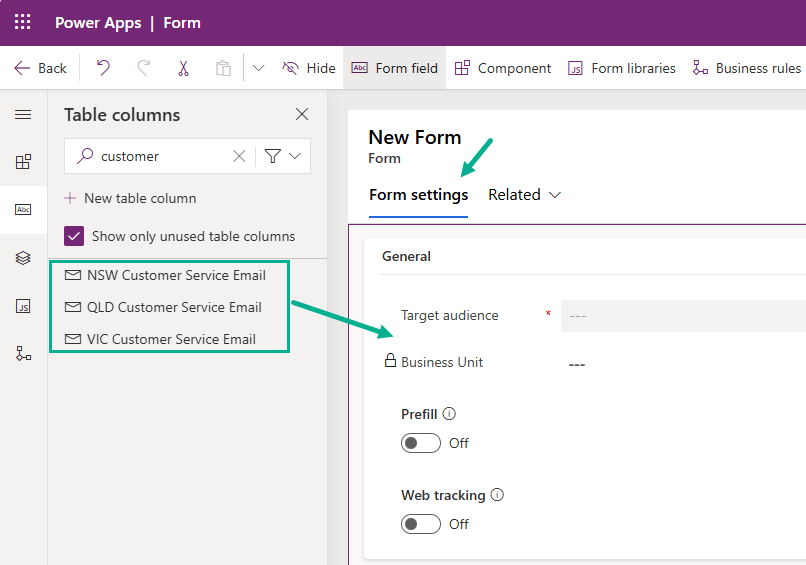
    Now, we’re going to configure Form settings Form.

    • Open Form settings
    • Click Form settings tab
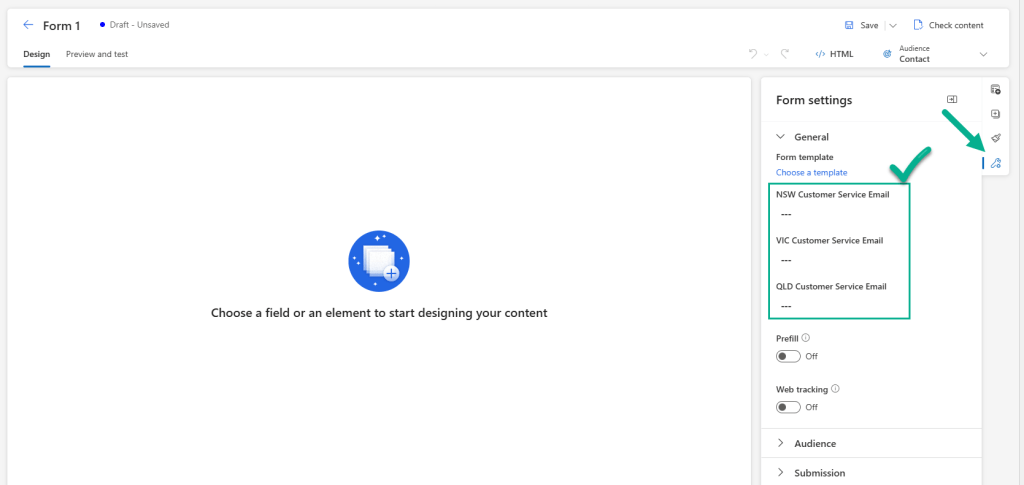
    • Drag and drop the following three columns just below of Target audience column
      • NSW Customer Service Email
      • QLD Customer Service Email
      • VIC Customer Service Email
    • Click Save and publish.

    Configure Information Form

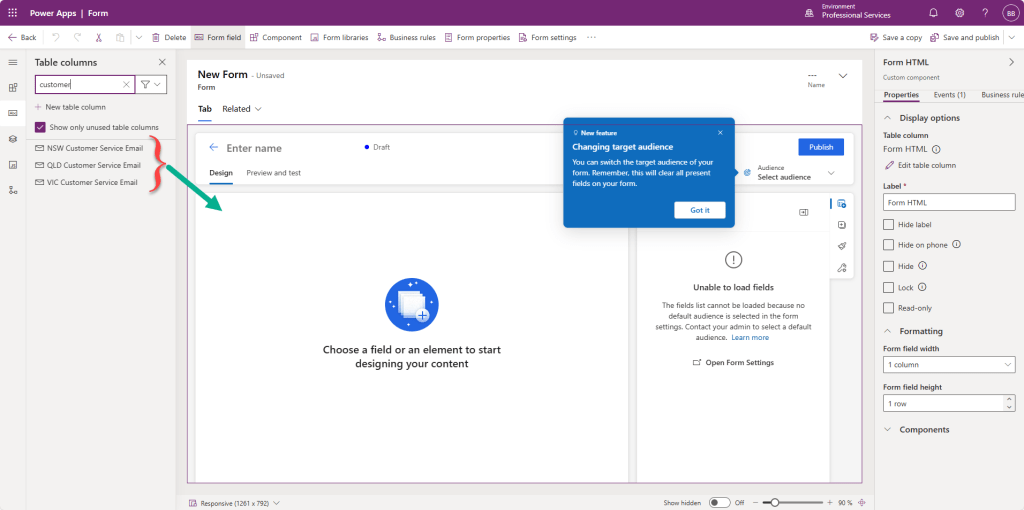
    • Open Information Form
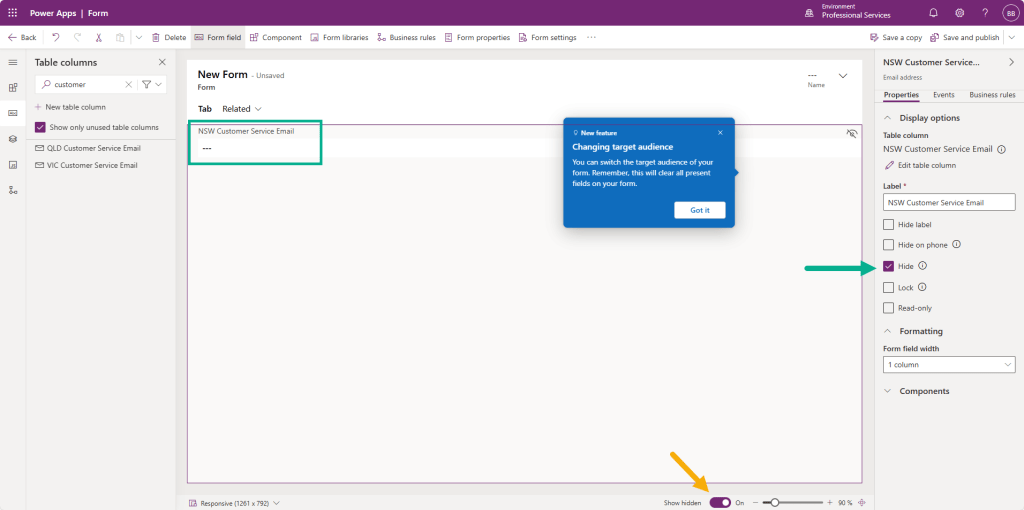
    • Drag and drop NSW Customer Service Email onto the Form
    • On the right panel, check Hide under Display options
    • (Optional Tip: Set Show hidden = On to verify if the column is already added.)
    • Repeat for the QLD and VIC email columns
    • Click Save and Publish

    Create the Contact Us Form

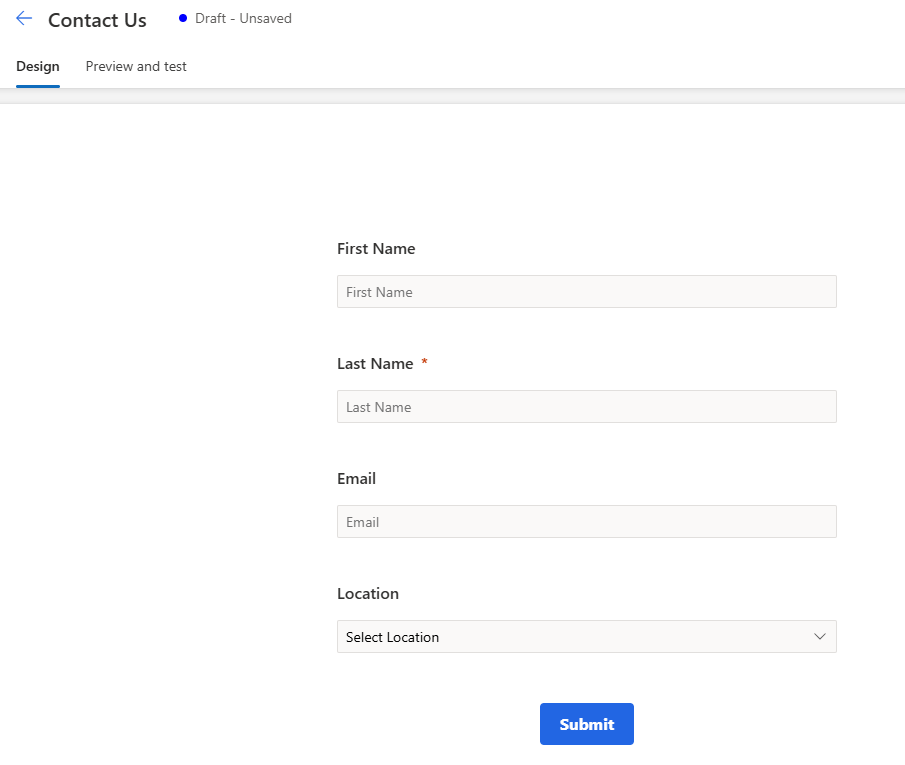
    Now, create a basic Contact Us form with the following fields: First Name, Last Name, Email and Location (the custom field that we created in the above) and Submit button.

    Follow the below steps.

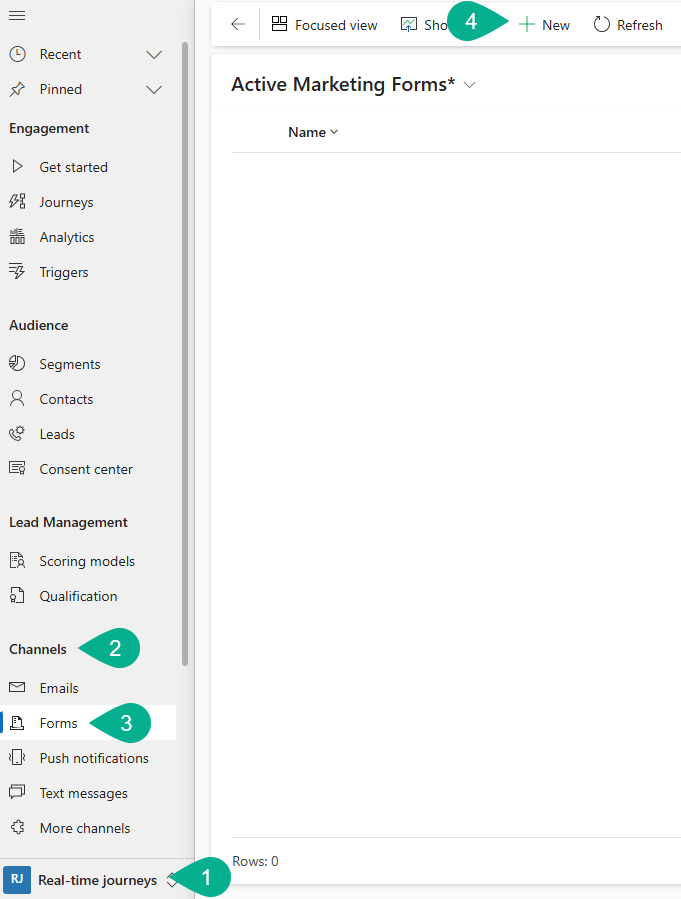
    1. Go to Real-time journeys
    2. Go to Channels
    3. Go to Forms
    4. Click [+New]

    Before adding fields, go to Form settings and confirm that the three internal email columns are included.

    Then drag and drop the necessary fields onto the canvas.

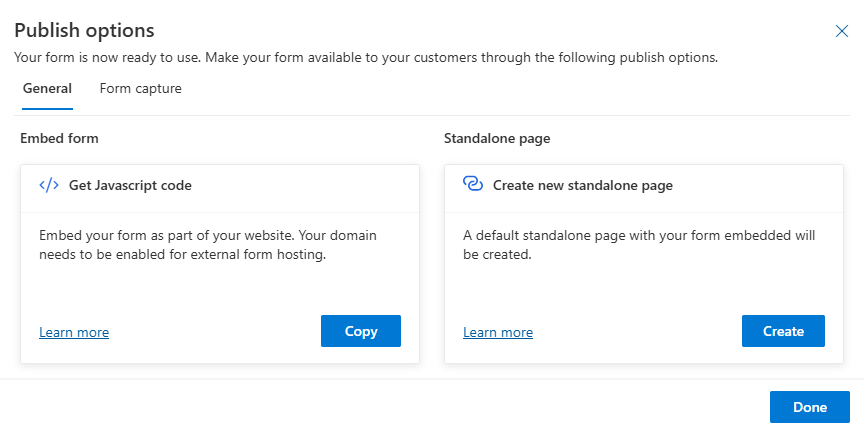
    Once done and no error, click Publish to be ready to be used. We’ll come back to the Form once we’ve set up other components for the result.

    Summary and Next Steps

    In this post, we’ve:

    • Created three internal email fields in Dataverse.
    • Created a Location field in the Contact table.
    • Customised the real-time marketing form to include internal fields.
    • Created the basic Contact Us form.

    In the next post – Configure Custom Trigger (Part 2), we will walk through how to create a Custom Trigger to use within the Real-time Journey – extending functionality to Power Automate Flow.