Zay Aung

Dynamics 365, Power Platform, and everything in between

Category: Customer Insights Journeys

  • Integrate Twilio Inbound Messages with Real-time Customer Insights Journey for Automated Consent Management

    In this blog post, I’ll walk you through how you can capture inbound SMS messages sent to your Twilio number, bring them into Dataverse, and trigger actions such as updating Text Message Contact Point Consent records in Dynamics 365 Customer Insights – Journeys (CI-J).

    TL;DR – The Solution

    Customer texts “STOP” → Twilio catches it → Sends webhook to Power Automate → Updates consent in Customer Insights – Journeys

    What You’ll Need

    To follow along, of course, you’ll need a Twilio number (trial or paid) to send SMS. For me, I’ve created a trial account that allows to send text message to the verified number. If you already have a Twilio number, you can skip the trial account setup. Otherwise, sign up for a free Twilio trial, verify your mobile number, and you’re good to go.

    Use Case Example

    Consider you’re running SMS campaigns through Customer Insights – Journeys using Twilio. Someone gets your promotional text and replies “STOP” because they’re not interested anymore.Twilio stops sending them messages (which is good), but your Customer Insights – Journeys has no clue they opted out.

    The result? Your reports show they’re still Opted In for Text Message, your data is wrong, and you might accidentally try to reach them again via the Text Message channel.

    Supported SMS Providers

    You can use below providers to send text messages in Customer Insights – Journeys. However, in this blog, I’ll be using Twilio to show you how you can receive inbound message.

    • Azure Communication Services
    • Infobip
    • LINK Mobility
    • TeleSign
    • Twilio
    • Vibes

    Understanding STOP/START Keywords in Twilio

    In general, there’re some keywords reserved for SMS Stop filtering as industry standards – examples are STOP, UNSUBSCRIBE, STOPALL , CANCEL, REVOKE or OPTOUT. This, of course, applies to Twilio too. So When someone replies with a STOP keyword, Twilio adds the sender’s number to a block list and stops sending SMS to them. To resume, the user can reply with START, YES, or UNSTOP.

    By default, Twilio does not forward these inbound replies (or any replies) to Dynamics 365. You must configure an inbound webhook for Customer Insights – Journeys to “catch” the responses. More details here.

    Overview of Power Automate Flow

    This is the overview of the Power Automate Flow that we’re about to create.

    Scope of this blog: I’ll just create a simple Flow, and end it at showing the output of STOP/START – as the purpose of this blog is to show you how you can receive the responses.

    Out of scope: From there, you can extend the Flow to update Contact Point Consents or to facilate other business requirements.
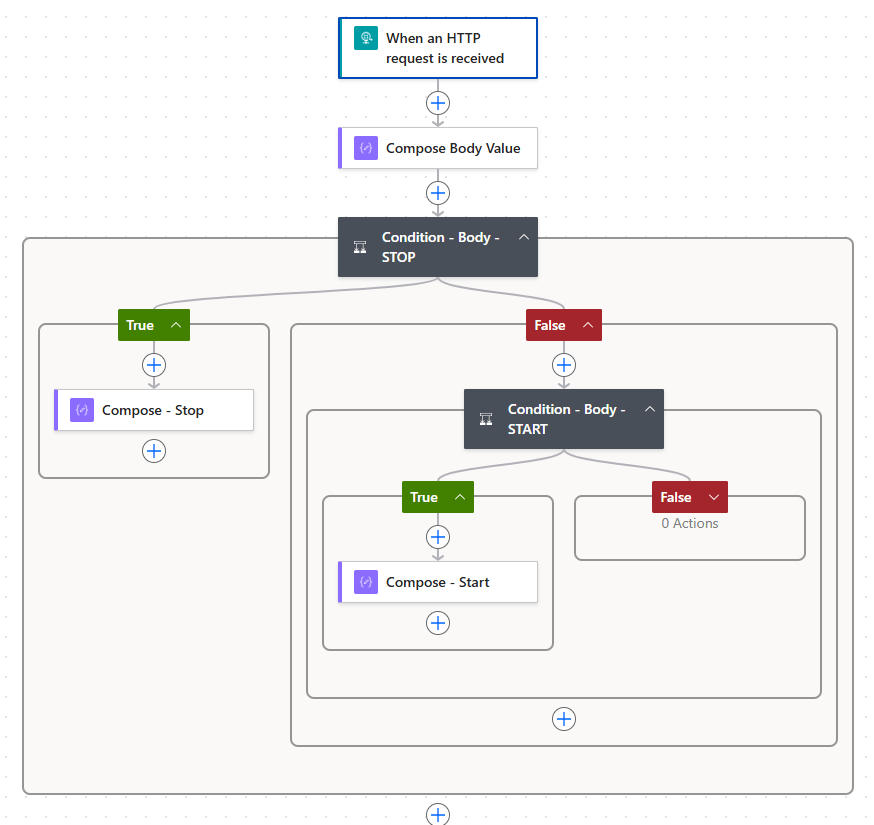
    Fig: Flow Overview

    Build Power Automate Flow

    To do that, first, create a new flow with the trigger: When an HTTP request is received as a first action. Configure the action as below.

    • Who can trigger the flow? → Anyone
    • Method → POST

    Once save the action, the URL will be generated. This will be our callback (webhook) URL that Twilio will post the customer’s response. We will copy the HTTP URL and paste in Webhook URL later.
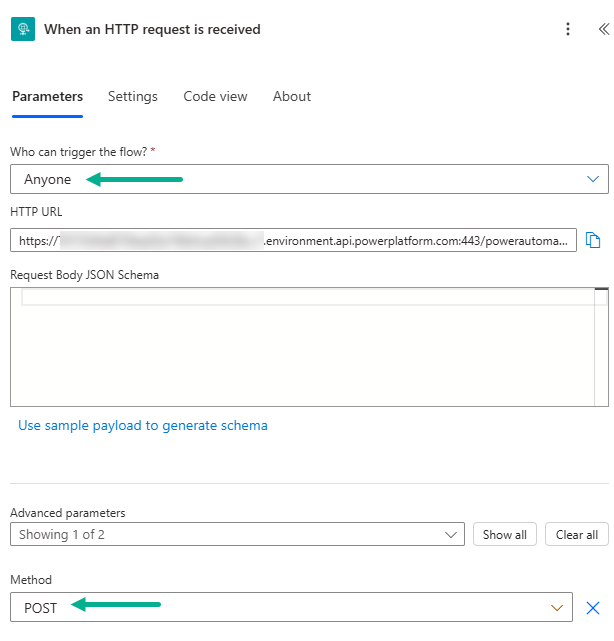
    Fig: When an HTTP request is received action

    We will then add a Compose action to read the Body message from the above HTTP request.
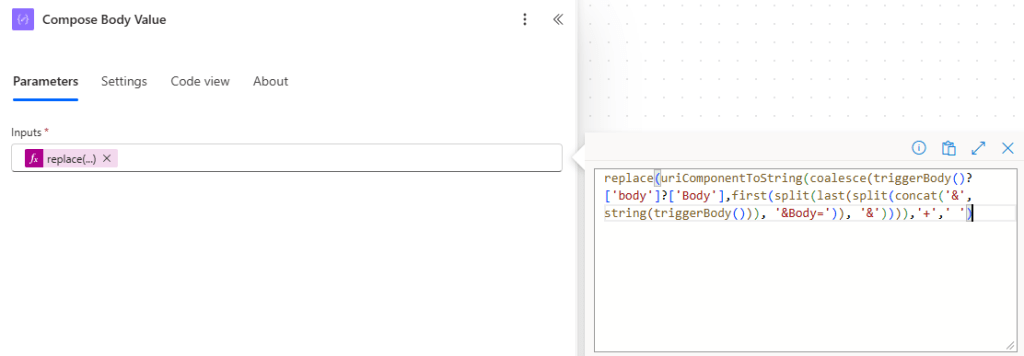
    Fig: Compose Body Value

    Here is the expression I’ve used to read the response from the customer.

    replace(uriComponentToString(coalesce(triggerBody()?['body']?['Body'],first(split(last(split(concat('&', string(triggerBody())),'&Body=')),'&')))),'+',' ')

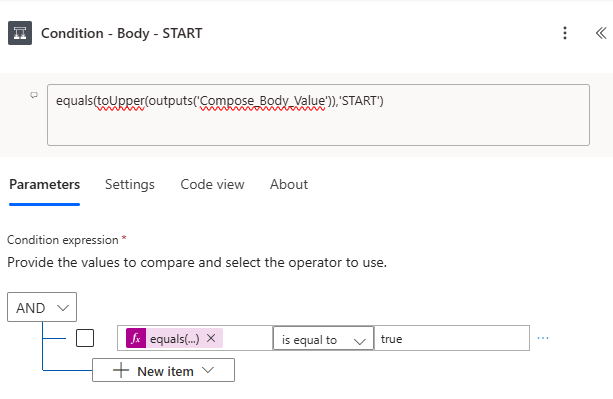
    Then we will check the message whether it’s STOP or START. For example,

    • If Body = STOP → update consent (Do Not Allow)
    • If Body = START → update consent (Allow)
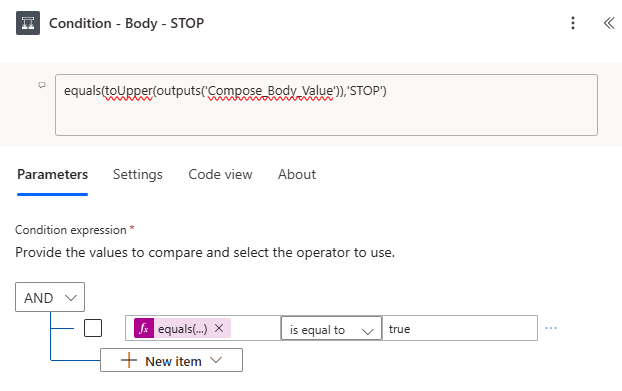
    Fig: STOP Condition
    Fig: START Condition

    Once complete, Save and Publish the Flow.

    Verify Caller ID in Twilio

    Next, we are going to configure webhook in Twilio. For that, login to Twilio account. Before we send the SMS from Twilio, we need to add a new Caller ID, and verify that you’re the owner the number.
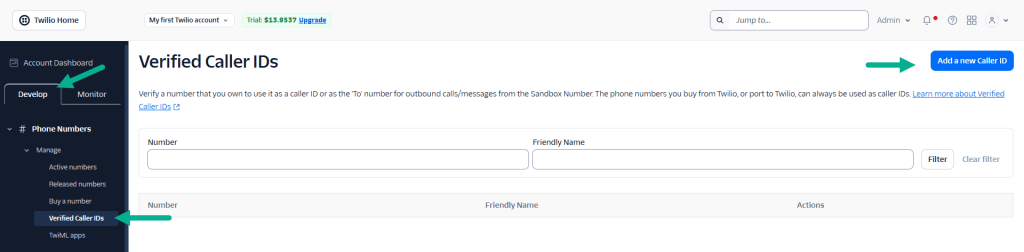
    Fig: Twilio Add A New Caller ID

    Add your number and enter verification code sent to your mobile.
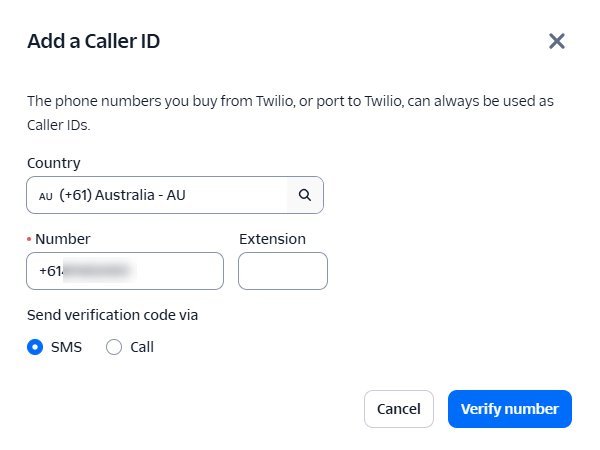
    Fig: Twilio Add a Caller ID

    Once verified, you will see the number added to Verified Caller IDs list.
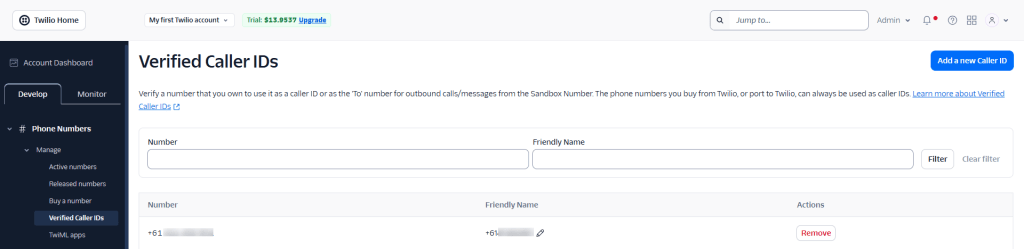
    Fig: Twilio Added Verified Caller ID

    Configure Webhook URL in Twilio

    Next, we’re going to configure Webhook URL. Let’s copy the HTTP URL from the Flow and paste it in Webhook URL. Once configured as per the screenshot, click Save configuration.

    Now Twilio will POST any inbound SMS to your flow.
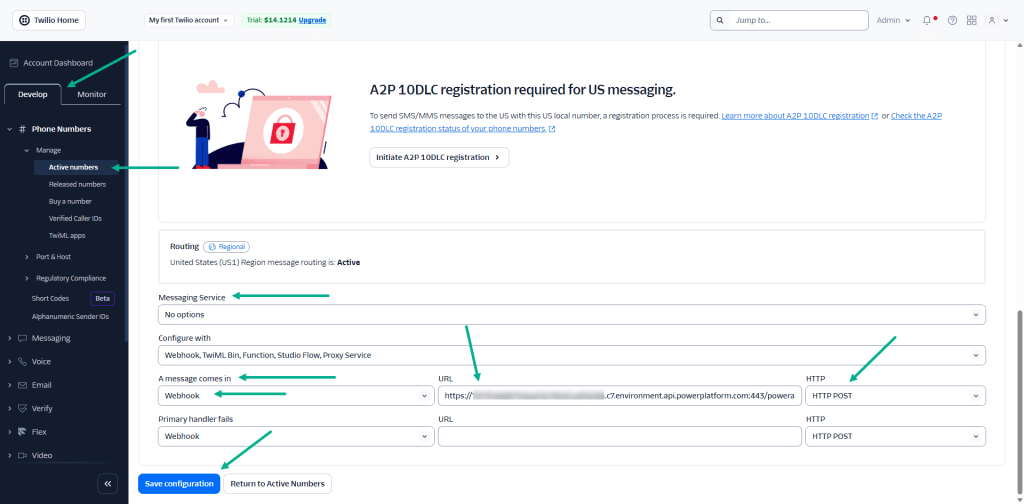
    Fig: Configure Twilio Webhook URL

    Testing the Setup

    We’re now ready to test by sending SMS to the verified number. In this example, I’m going to send a Sale alert SMS to my verified number.
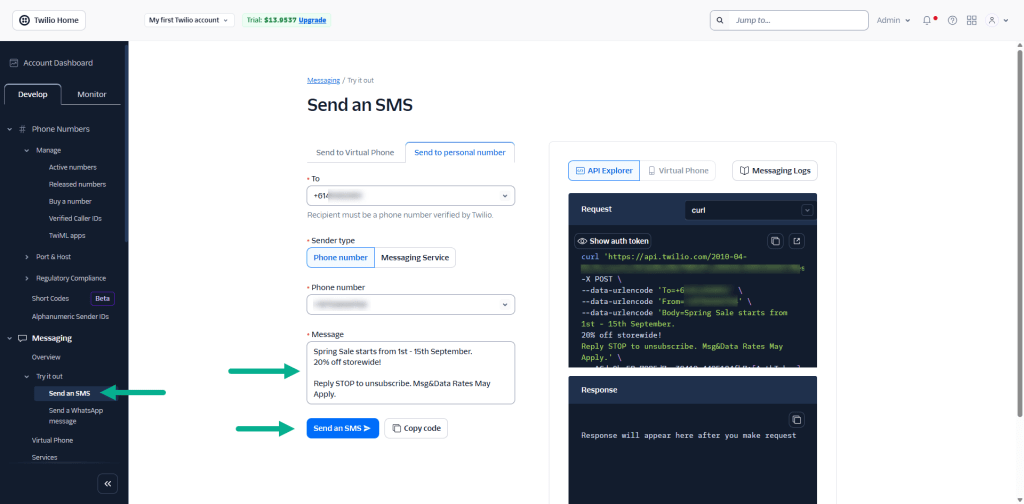
    Fig: Twilio Send SMS

    Once clicked Send an SMS, Twilio will send the SMS to the verified number.

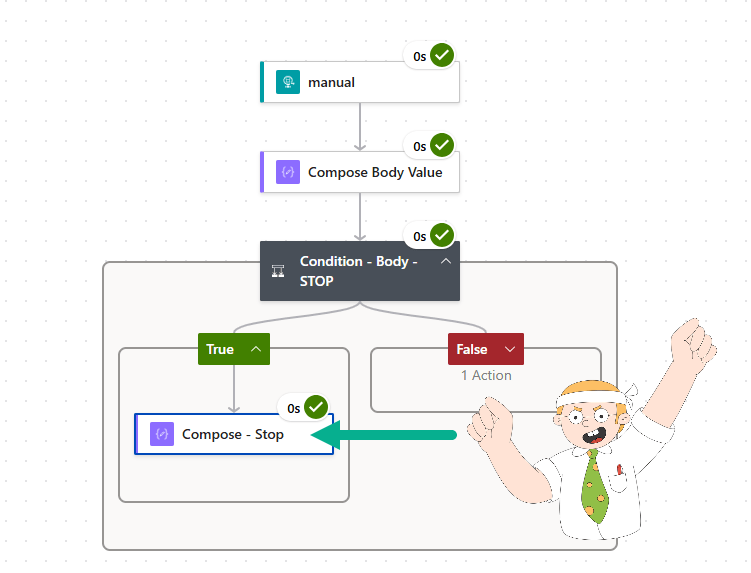
    Reply with Stop. Twilio will POST ‘the reply’ to the flow. The flow will capture it and follow the Stop path.
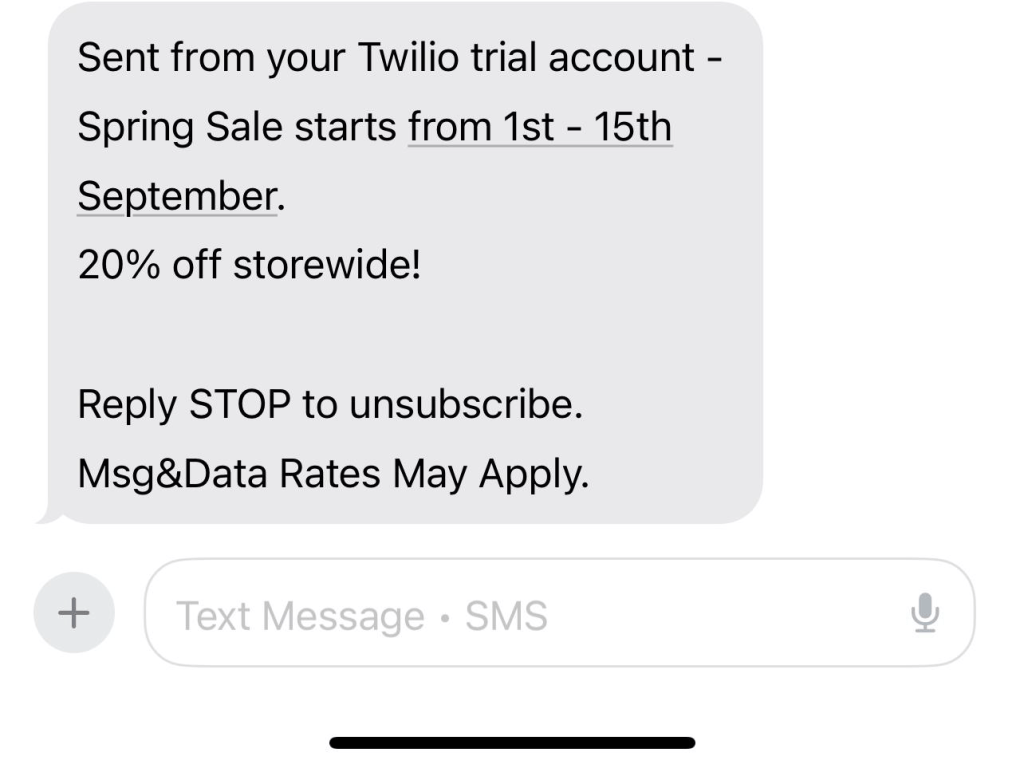
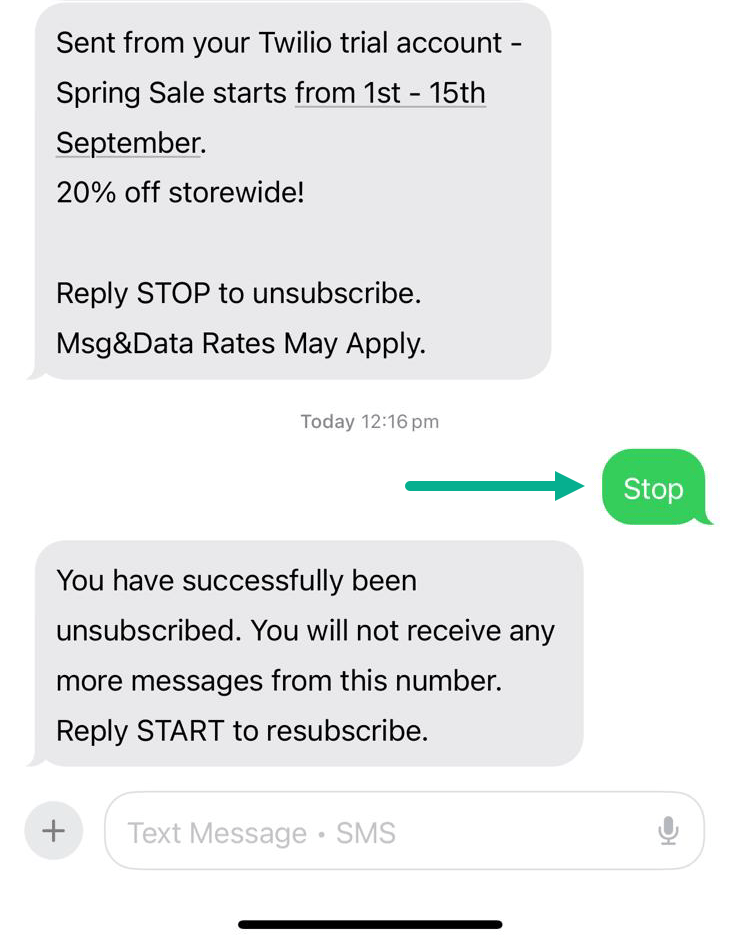
    Fig: SMS Sent to Verified Number
    Fig: Response Stop from Verified Number
    Fig: Flow Triggered and Flow Through to Stop Path

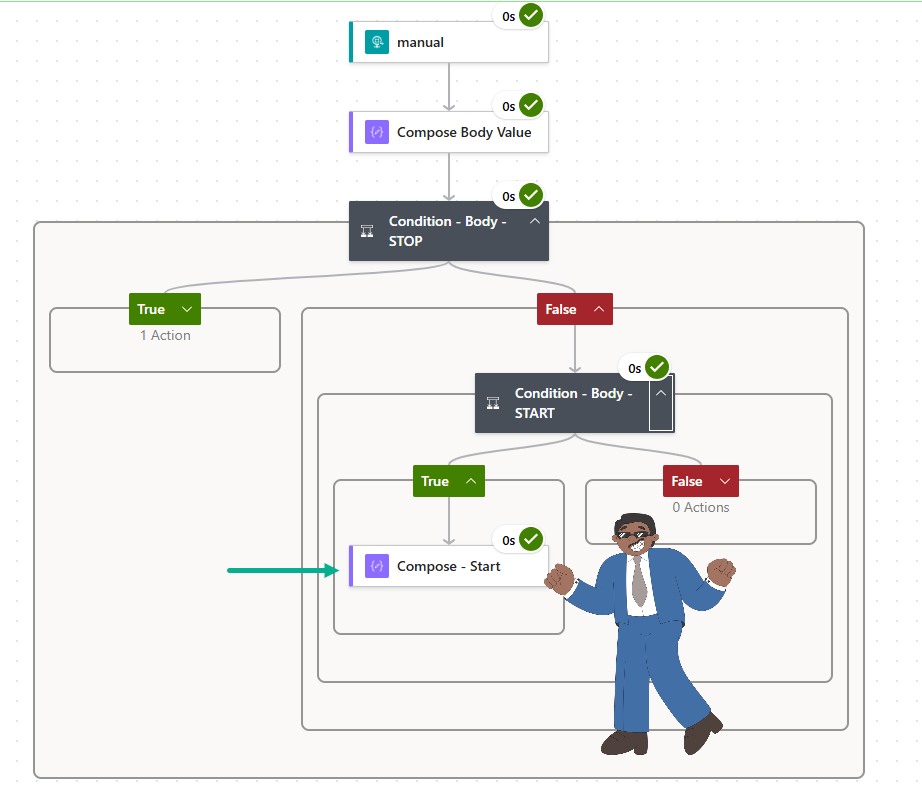
    Reply with Start. The flow will capture it, and follow the Start path.
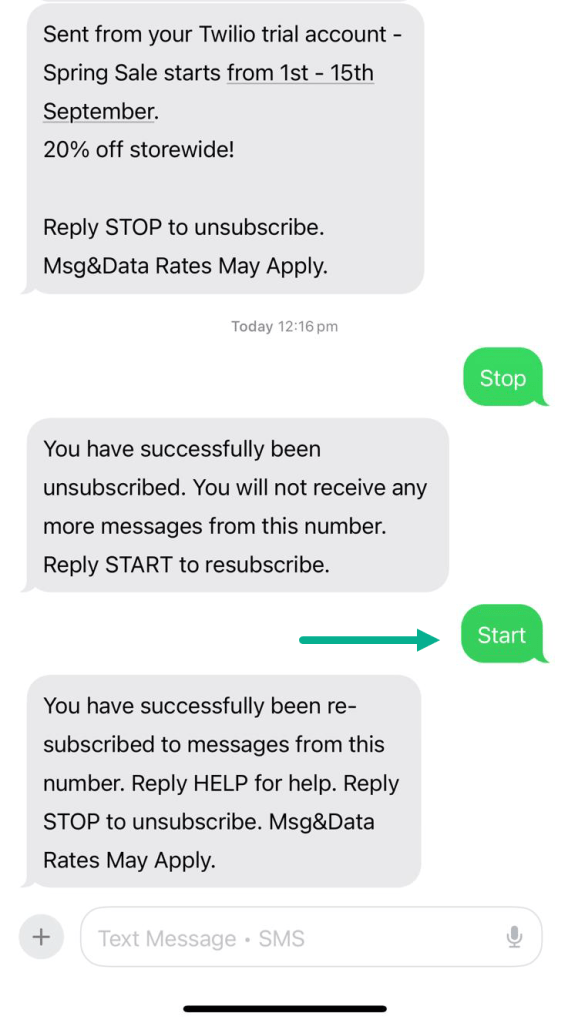
    Fig: Response Start from Verified Number
    Fig: Flow Triggered and Flow Through to Start Path

    At this point, you can extend your flow to update Contact Point Consents records.

    Summary

    In this post, we explored how to make Twilio and Dynamics 365 Customer Insights – Journeys work together for inbound SMS. By configuring a callback URL and using Power Automate as a listener, you can capture customer replies in real time. This allows you to keep SMS consent fully in sync when customers text STOP or START.
  • Add the Contactability Grid (Communication Tab) to Custom Forms in Dynamics 365

    In this post, I’ll walk you through how to add the Contactability grid to a custom form in Dynamics 365. While this grid is included by default in Customer Insights – Journeys, you may need to add it to other applications like Customer Service Hub.
    1. What is the Contactability Grid?
    2. Use Case Example
    3. Access the Form Designer
    4. Security Permissions Reminder

    What is the Contactability Grid?

    The contactability grid is a powerful tool that allows you to manage consent across every channel and line of business in your organisation. It provides a comprehensive view of customer communication preferences, making it easy to see and update consent settings for email, SMS, and custom channels.

    Use Case Example

    Consider a scenario where customers call your contact center to manage their communication preferences. By adding the contactability grid to your Customer Service Hub forms, agents can quickly update these preferences without switching applications.

    Access the Form Designer

    The steps are pretty simple, same as what you would design the Form, and add components.

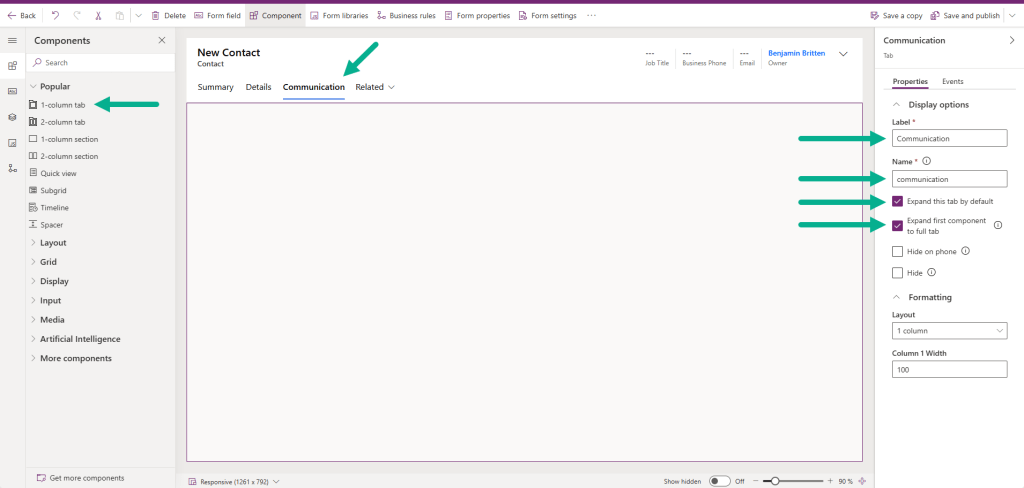
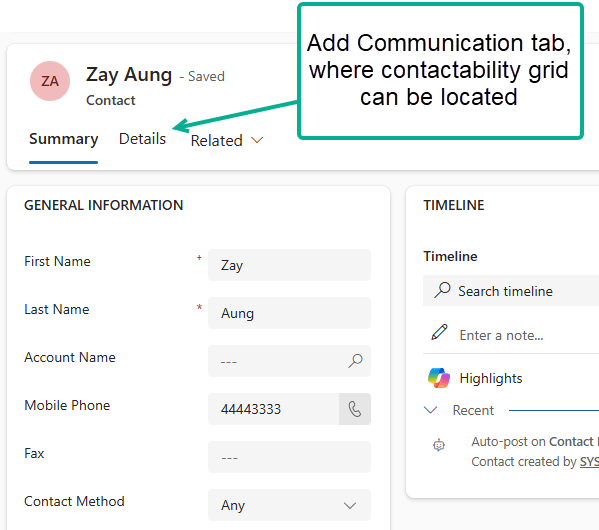
    First, Open the form in Power Apps where you want to add the Contactability grid. Add a 1-column tab to the form canvas – for example, name it Communication. Additionally, make sure to select Expand this tab by default and Expand first component to full tab.

    Fig: Add Communication tab to Contact Form

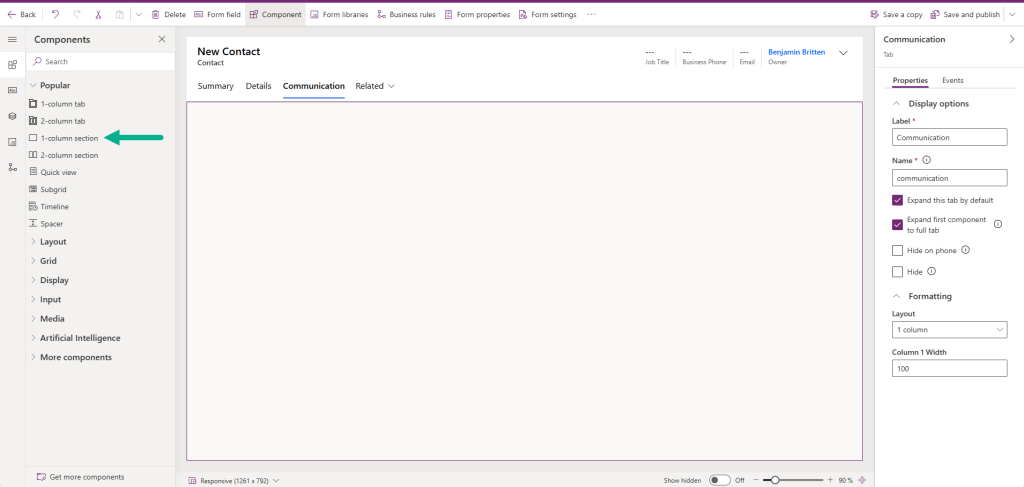
    Next, add 1-column section to Communication tab.

    Fig: Add section to Communication tab

    Next, we’re going to add Contactability grid to the Form. If you cannot find it in More components section, click Get more components and add it.

    Fig: Add Contactability grid to Form

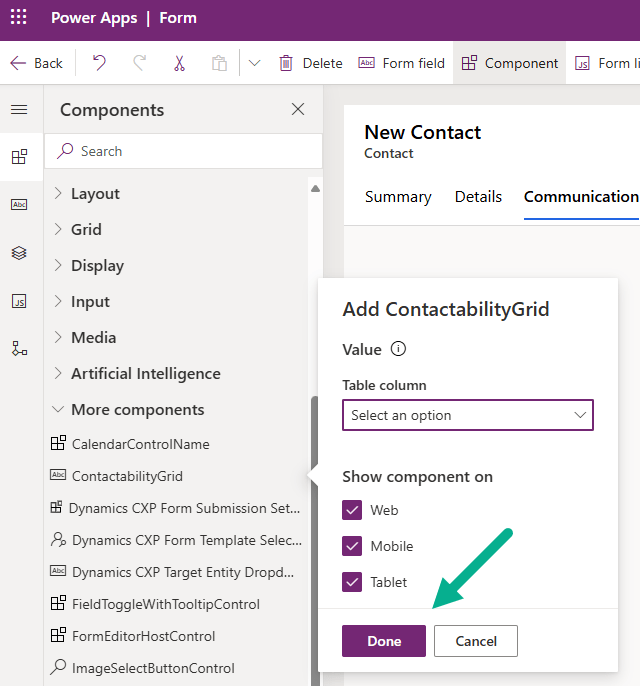
    Once added, select which platforms the Contactability grid should be available for (Web, Movile, Tablet) and click Done.

    Fig: Select Platform to Show Component

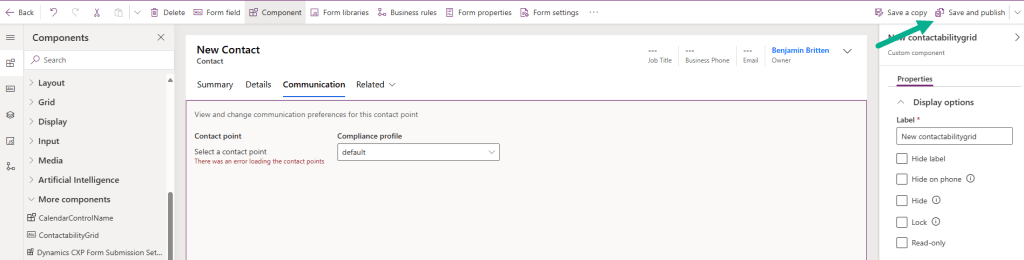
    Once added, you’ll see Contactability grid added to the Form. Click Save and publish.

    Fig: Save and Publish Contact Form

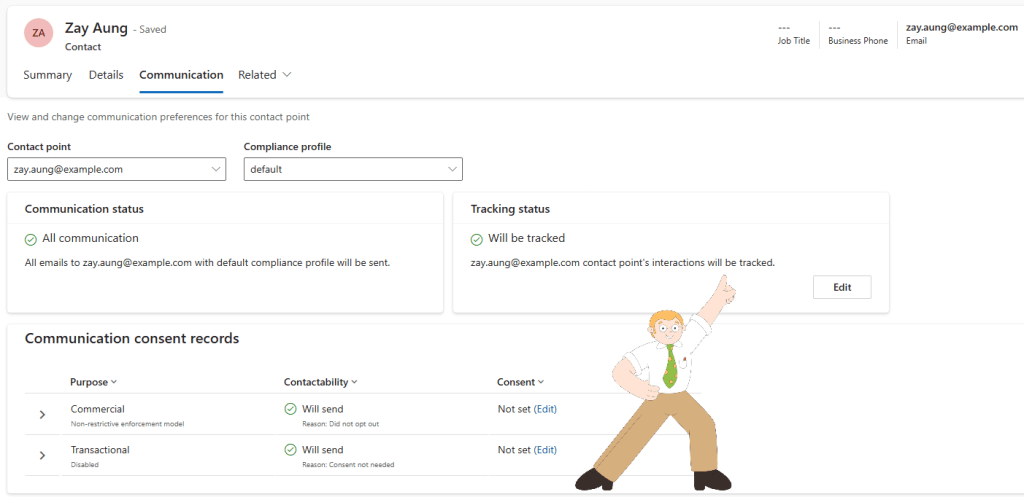
    Finally, you will see Communication tab with Contactablity grid – the same as what you’d see in Customer Insights – Journey – Contact form by default. This will allow other application or team – for example, Customer Service team to update Contact’s contactability preference.

    Fig: Added Communcation Tab with Contactablity Grid

    Security Permissions Reminder

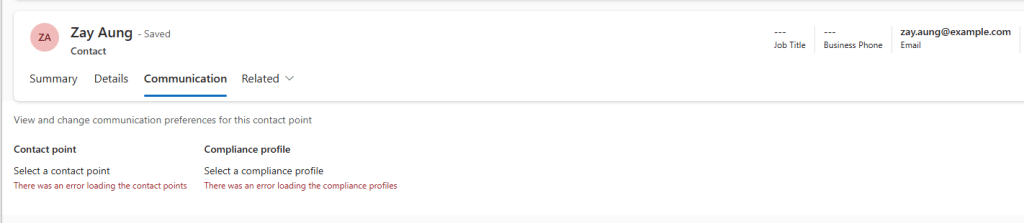
    Update: One thing to call out – make sure users have the required security permissions to see or interact with the Contactability control. Thanks to Megan V Walker for highlighting this! If user is not given right priviliges, the below error will be prompted.

    Fig: The error users will encounter without the right privileges

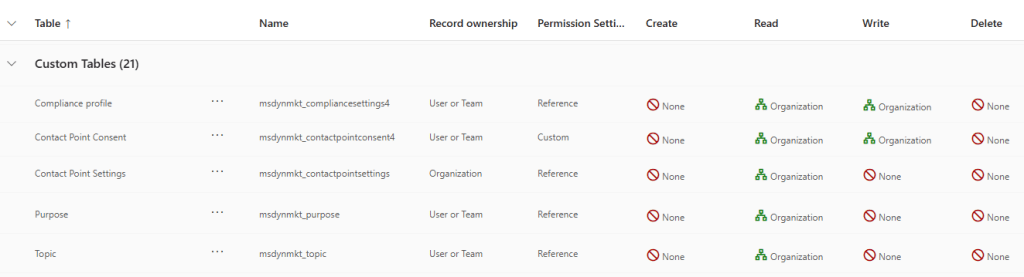
    Ensure the relevant privileges are granted for the below five tables covering Email and SMS channels (and any custom channel tables, if applicable).

    Fig: Security Privileges
  • Migrate Contacts and Contact Point Consents (CPC) into Customer Insights – Real-time Journey

    Migrate Contacts and Contact Point Consents (CPC) into Customer Insights – Real-time Journey

    In this post, I’ll walk you through how to migrate Contacts together with Contact Point Consents (CPC) from an external source into Customer Insights – Journeys (CI-J).

    1. Requirements Covered in This Post
    2. Create Custom Raw Contact Table
    3. Create Power Automate Flow to Process Raw Contact from the External Source
      1. When a row is added – Raw Contact
      2. List rows – Contact Filter by Email
      3. Condition – Email Match Found
      4. List rows – Contact Point Consent
      5. Select – CPC
      6. Filter – Commercial Consent Status
      7. Condition – Commercial Consent Status Return Result
      8. Filter – Monthly Newsletter Consent Status
      9. Condition – Monthly Newsletter
      10. Delete a row – Raw Contact
    4. Testing the solution
    5. Considerations
    6. Summary

    If you ever come across a requirement to migrate or upgrade from a previous marketing system – and need to carry over existing consent records – you’ll need to plan how to migrate both Contacts and their related CPCs effectively into CI-J.

    If you’re only importing CPCs separately (i.e., Contacts have already been migrated to Dataverse), then you can use the out-of-the-box (OOTB) functionality, which is well documented in this post by Megan V. Walker: How To Import Contact Point Consent Records. In that case, feel free to skip this blog entirely.

    Requirements Covered in This Post

    In this post, we’ll focus on the following use case:

    • Both Contacts and CPCs are imported together using an Excel file.
    • Contacts are upserted – if a Contact doesn’t exist, it’s created; if it does, it’s updated.
    • CPCs are created or updated alongside the Contact.

    Notes:

    1. We’ll use email as the unique identifier for Contacts (a common practice).
    2. CPCs will include:
      • Purpose = Commercial
      • Topic = Newsletter
    3. The solution will only focus on Email channel.

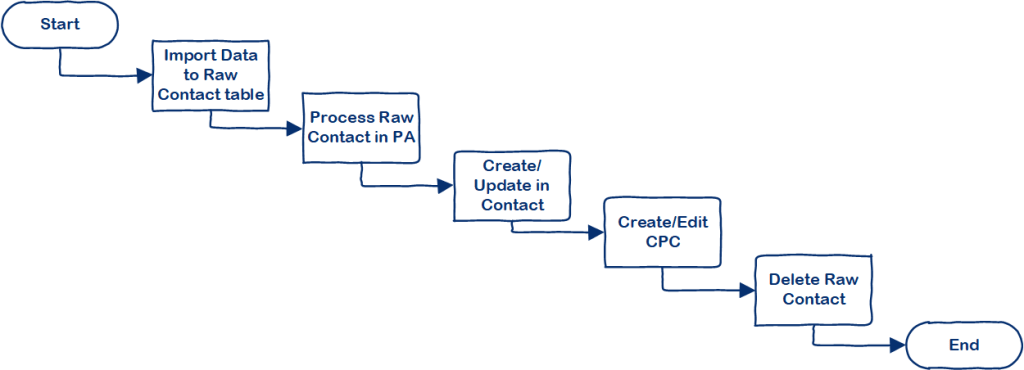
    Below is the conceptual diagram of how to achieve the requirements.

    Fig: Solution Conceptual Diagram

    Create Custom Raw Contact Table

    We start by creating a custom table called Raw Contact, with the following columns:

    NameData TypeValuesNotes
    First NameSingle line of textN.A
    Last NameSingle line of textN.A
    Commercial Consent StatusChoiceNot Set
    Opted In
    Opted Out
    You can use OOTB Choice – Consent Value
    Monthly Newsletter Consent StatusChoiceNot Set
    Opted In
    Opted Out
    You can use OOTB Choice – Consent Value
    Raw Contact Form
    Fig: Raw Contact Form

    Create Power Automate Flow to Process Raw Contact from the External Source

    To process the data, we’ll use Power Automate to:

    • Upsert Contacts
    • Create/update related CPCs
    • Remove the processed Raw Contact record

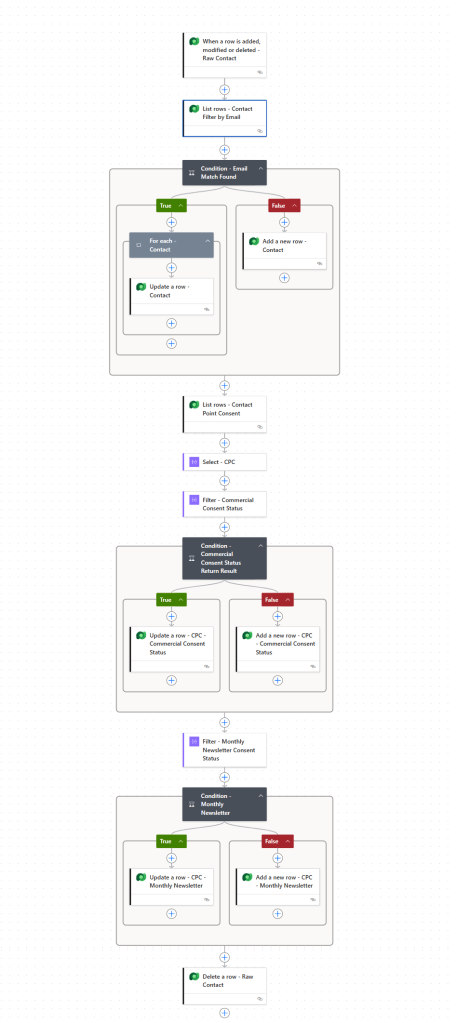
    Below is the overview of the Flow.

    Fig: Raw Contact – Add Contact and Contact Point Consent PA

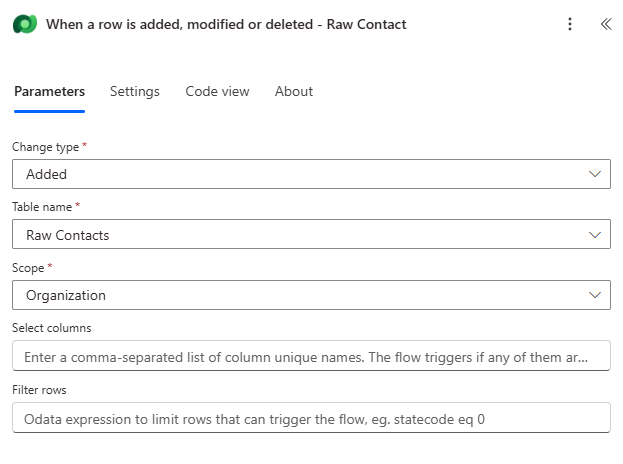
    When a row is added – Raw Contact

    First, the Flow will be triggered when the Raw Contact record is added (e.g., from Excel import).

    Fig: When a row is added – Raw Contact

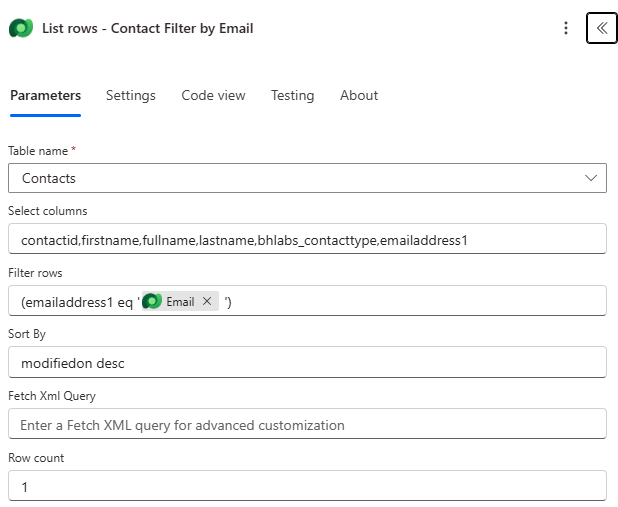
    List rows – Contact Filter by Email

    Next, we will include List rows to filter Contact by Email. As you can see from the screen, I’ve included Sort By = modifiedon desc and Row count = 1. That means for some reason, if there’re multiple Contacts with the same email, we’ll only update the latest Contact.

    Fig: List rows – Contact Filter by Email

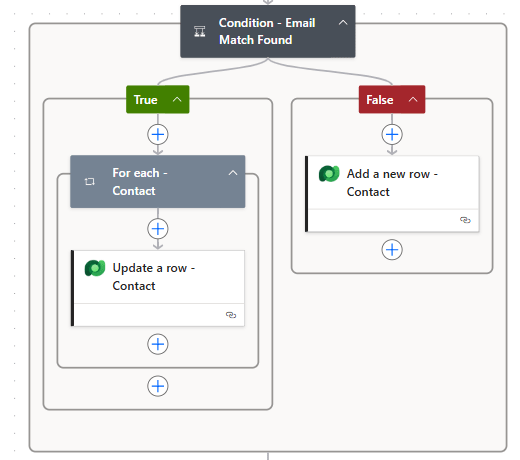
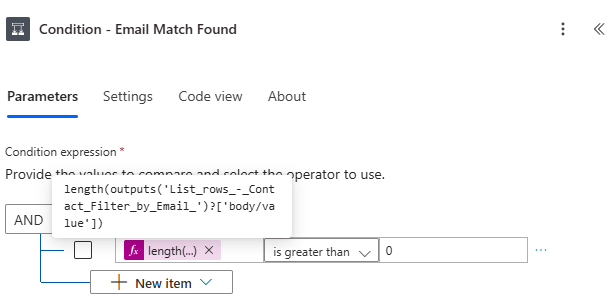
    Condition – Email Match Found

    These actions are pretty straight forward. As mentioned in the above, this will upsert the Contact.

    Fig: Condition – Email Match Found
    Fig: Email Match Found – Condition expression

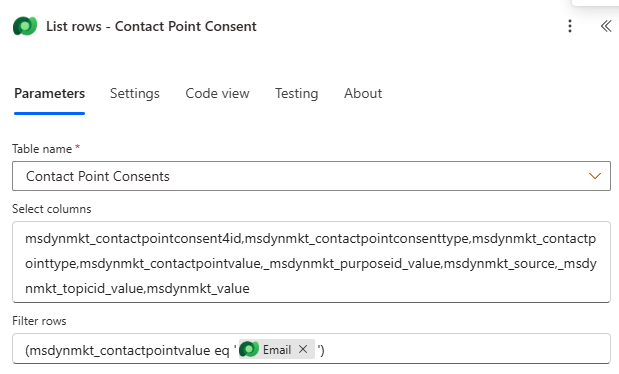
    This action will list CPC rows with Contact’s email to check if CPC record already exists.

    Fig: List rows – Contact Point Consent

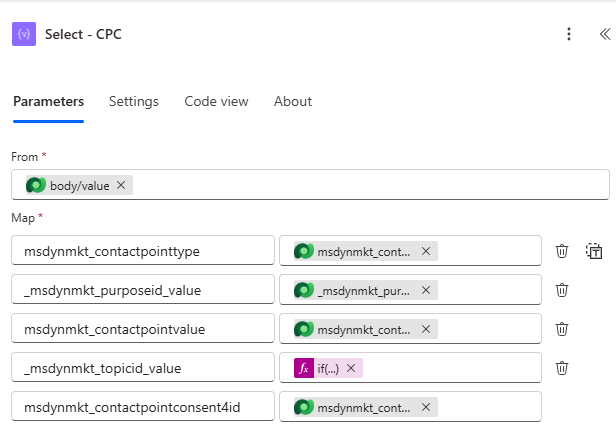
    Select – CPC

    This action will transform the shape of objects in an array so that I can reuse it easily to further filtering. One thing to call out here is that for _msdynmkt_topicid_value column, I’ve used the below expression to replace with null for the general Commercial Purpose without associating with Topic.

    if(equals(contains(string(item()),'_msdynmkt_topicid_value'),true),item()?['_msdynmkt_topicid_value'],null)
    Fig: Select – CPC

    This action will filter the particular CPC record where:

    • Contact point value = [Contact’s Email] and
    • Purpose = Commercial and
    • Topic = null (the null value is assigned in the above step) and
    • Channel = Email

    Below is the expression I’ve used to filter the above conditions to check if the CPC record already exists.

    and(equals(item()?['msdynmkt_contactpointvalue'],triggerOutputs()?['body/bs_email']),equals(item()?['_msdynmkt_purposeid_value'],'[Replace with Commercial Purpose GUID]',equals(item()?['_msdynmkt_topicid_value'],null),equals(item()?['msdynmkt_contactpointtype'],534120000))
    Fig: Filter – Commercial Consent Status
    Fig: Example result of “Filter – Commercial Consent Status”

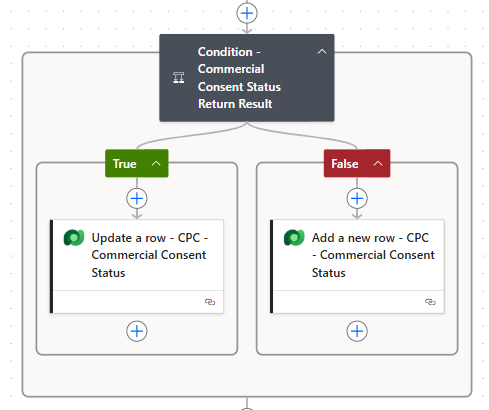
    Based on the result from the above filter – Commercial Conset Status – we will then upsert CPC record for Commercial Purpose that is not associated with any Topic.

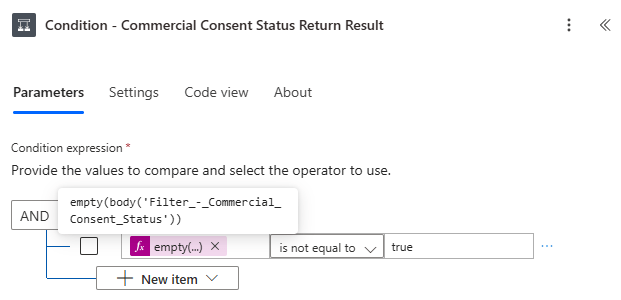
    Fig: Condition – Commercial Consent Status Return Result
    Fig: Commercial Consent Status – Condition expression

    While “Update a row” and “Add a new row” actions are pretty straight forward, a few things to call out.

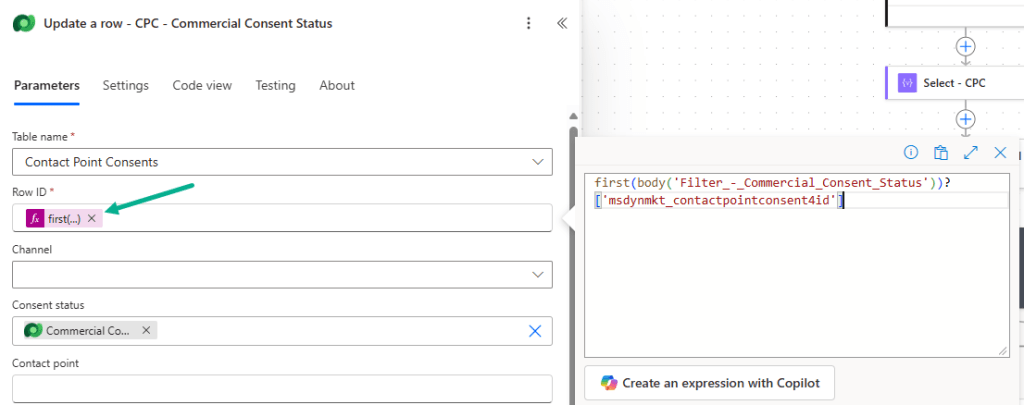
    • On “Update a row – CPC – Commercial Consent Status” action, below is the expression to get Row ID of the particular CPC record.
    first(body('Filter_-_Commercial_Consent_Status'))?['msdynmkt_contactpointconsent4id'] 
    Fig: Update a row – CPC – Commercial Consent Status action
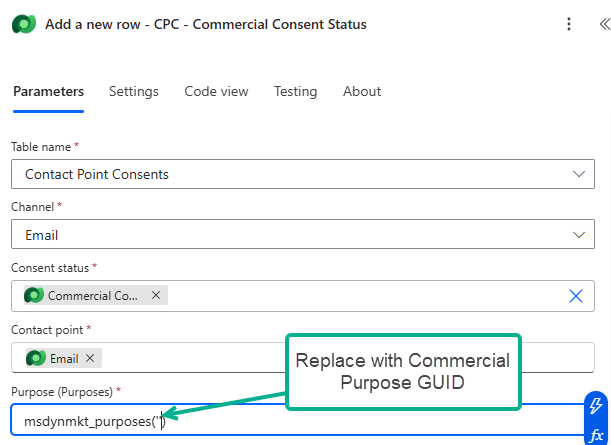
    • On “Add a new row – CPC – Commercial Consent Status” action, make sure to follow the correct format to update Commercial Purpose lookup, and replace with Commercial Purpose GUID.
    Fig: Add a new row – CPC – Commercial Consent Status action

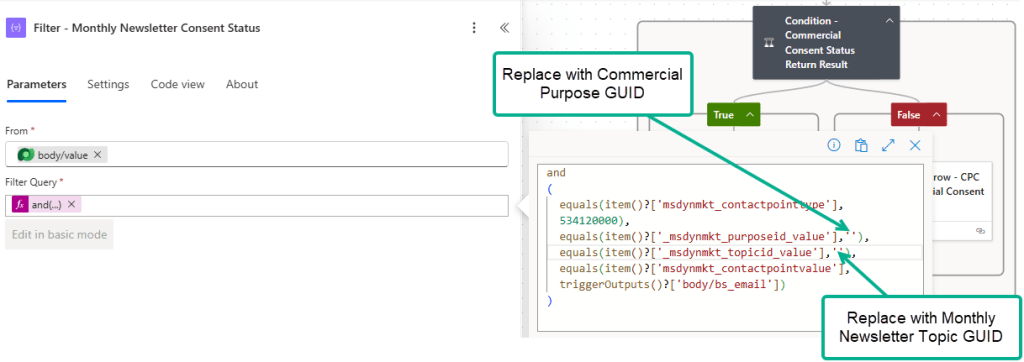
    Similar to the above filter action, this action will filter particular CPC record where:

    • Channel = Email and
    • Purpose = Commercial and
    • Topic = Monthly Newsletter and
    • Contact point value = [Contact’s Email]
    Fig: Filter – Monthly Newsletter Consent Status
    Fig: Example result of “Filter – Monthly Newsletter Consent Status”

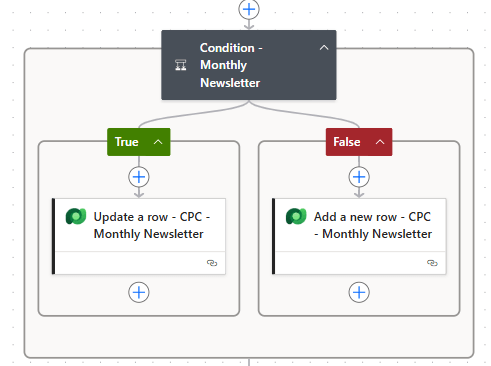
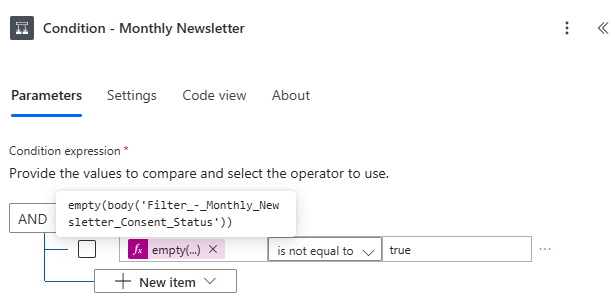
    Condition – Monthly Newsletter

    Based on the result from the above filter – Monthly Newsletter Consent Status – we will then upsert CPC record for Monthly Newsletter Topic.

    Note: As mentioned in Condition – Commercial Consent Status Return Result, follow the same to get Row ID in “Update a row”, and follow the correct format to populate Commercial Purpose lookup.

    Fig: Monthly Newsletter – Condition expression

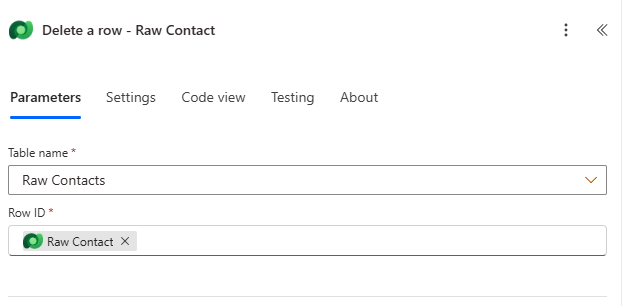
    Delete a row – Raw Contact

    Once upsert Contact and CPC record, the final action is to delete Raw Contact record that you’ve imported to Raw Contact table. This will enable business users to check easily if processing of Raw Contacts complete.

    After that, validate the Flow make sure if there’s no error, and once done, Publish it.

    Testing the solution

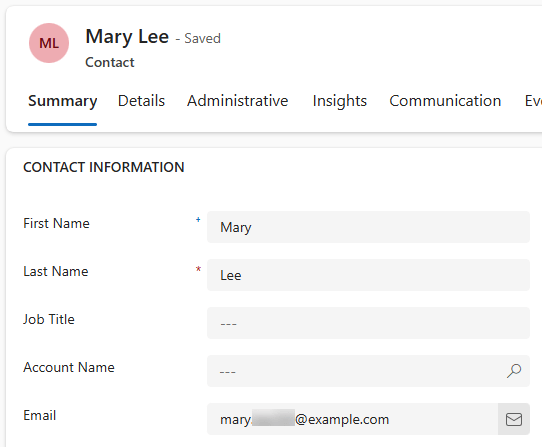
    Once published, import the data to Raw Contact using Excel data template. The Flow will be triggered and process Raw Contact record. If the Flow is run successfully, it will upsert Contact and associated CPC.

    Fig: Raw Contact Excel data template
    Fig: Contact form
    Fig: Contact Point Consent

    Considerations

    There are a few practical considerations to be aware of:

    • OOTB Data Import Limits: The amount of record you can upload to Dataverse using OOTB Data Import functionality is limited.
    • Power Platform Request Limits: The number of request Power Platform can handle within 24 hours also has limit – the limit varies based on which plan you’re on.

    Summary

    In this blog post, we’ve:

    • Created a custom Raw Contact table
    • Built a Flow to process and upsert Contacts and CPCs
    • Validated the results through testing
    • Shared considerations for volume and scalability

    Let me know if you’ve implemented something similar, or if you face any issues during your migration journey!

  • Sending Internal Email Upon Form Submission: Create Real-time Journey (Part 4 of 4)

    Create Real-time Journey

    This is the last post of this series. In this post, we’ll bring everything together by building a Real-time Journey in Customer Insights – Journeys that sends an email to the internal team based on the contact’s location.

    Create the Real-Time Journey

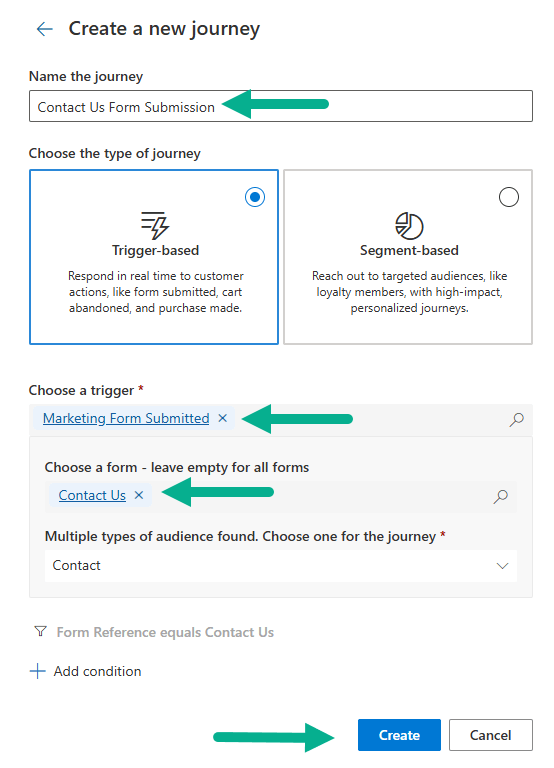
    • Create a Real-time Journey with the below configurations. It’s optional to select “Contact Us”, however, in this example, we’re going to select the Form we’ve created in the previous post [Part 1].

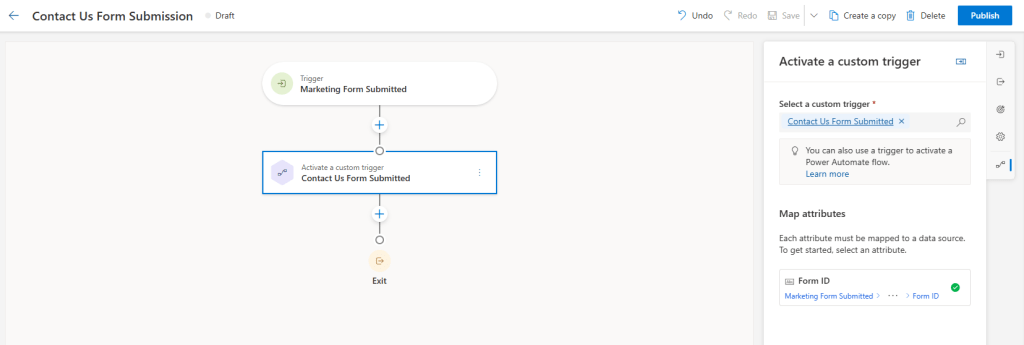
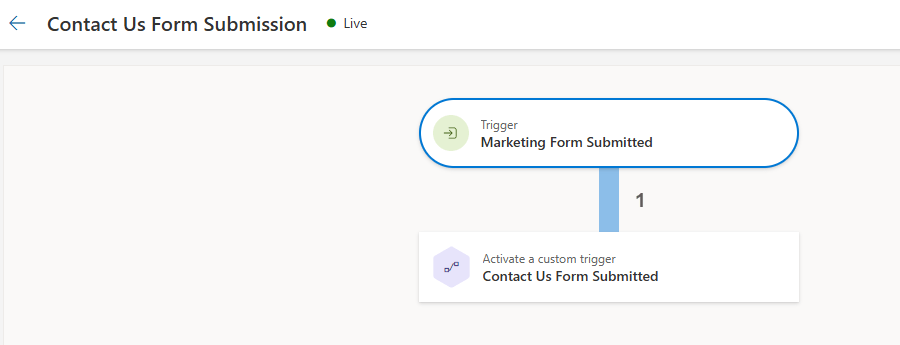
    Below is a simple journey where Contact will enter to this journey upon submitting Contact Us Form.

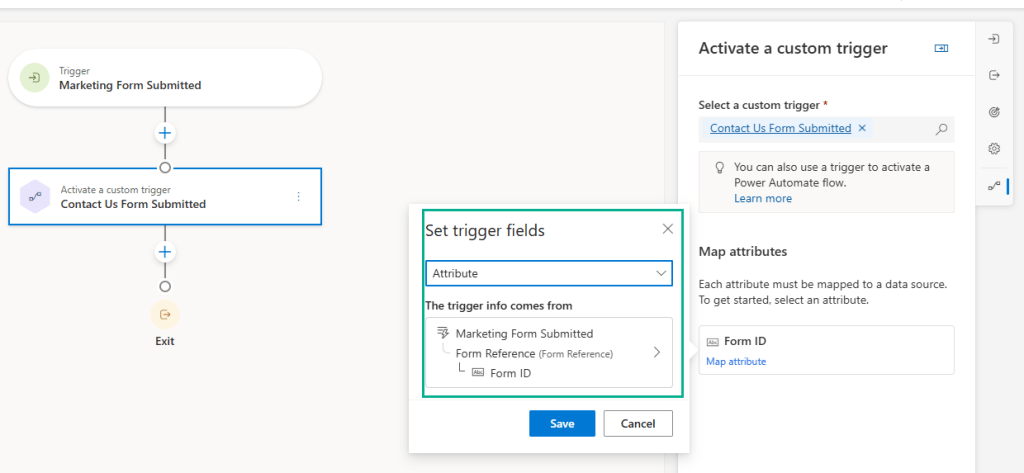
    Below is the definition of Form ID – which we’ve configured in the Custom Trigger in [Part 2]. This is being used in the [Part 3] to retrieve Form Details in Power Automate Flow.

    Once the journey is configured, Publish.

    Testing and Verification

    Publish the Form

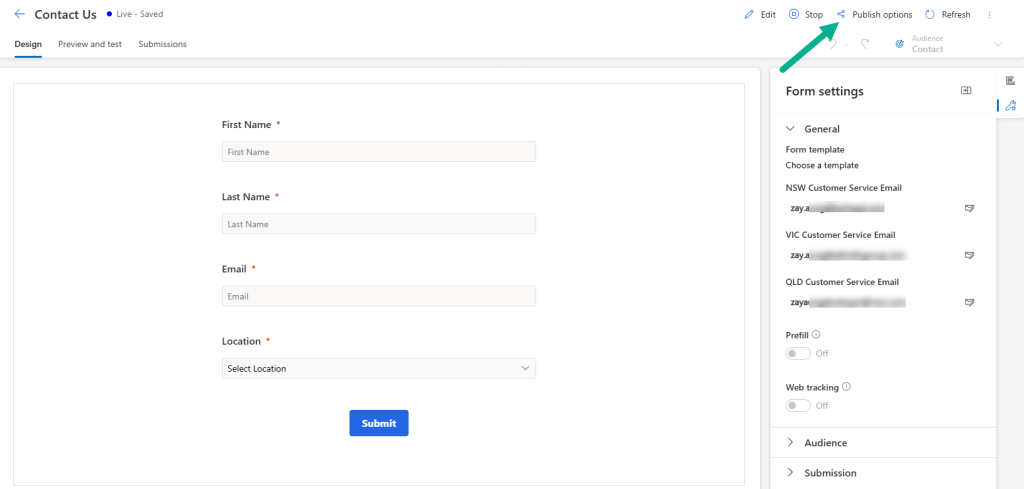
    Now, go back to the Contact Us Form created in [Part 1]. Follow the below steps.

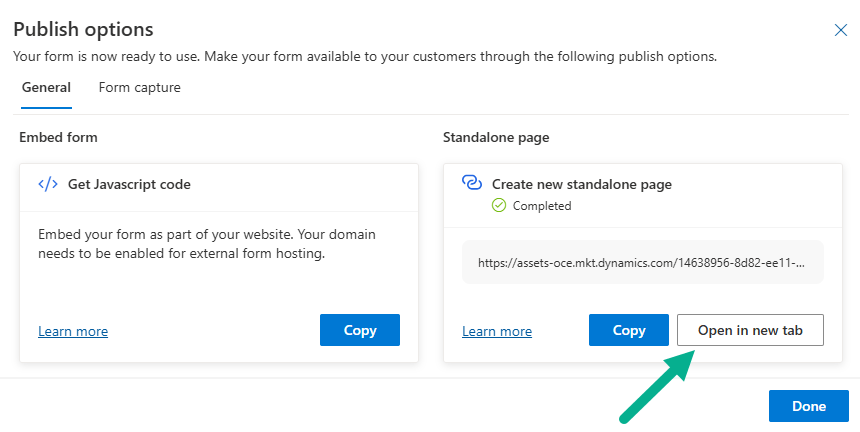
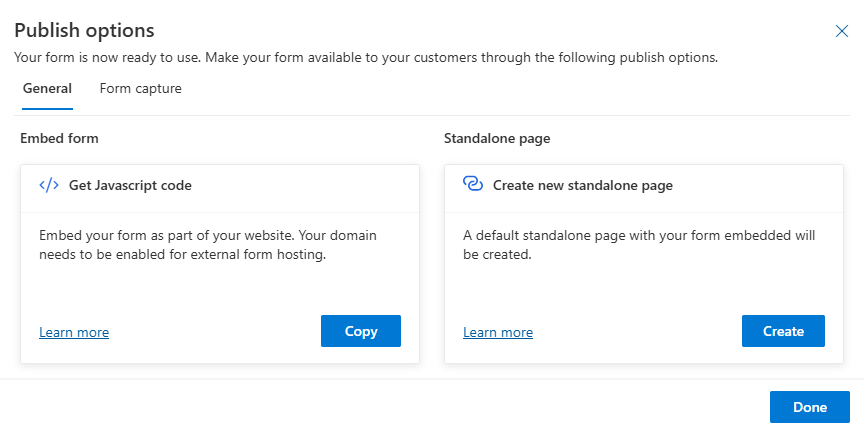
    • Click Publish options
    • Click Open in new tab to launch the form in a standalone view

    Submit the Form

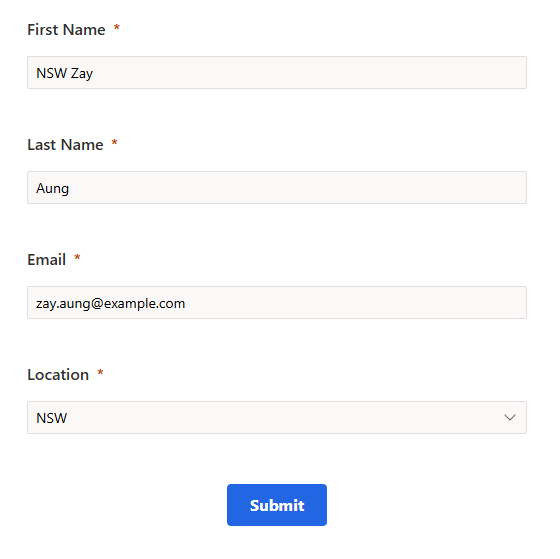
    • Fill in the required details (e.g., First Name, Email, Location).
    • Click Submit.

    Check Form Submission

    Once the Form is submitted, go to the Form -> click “Submissions” tab. The new submission record with recently created submitted details should be created.

    Verify the Journey

    Navigate to the Real-time journey created, and confirm that the contact has entered the journey based on the form submission.

    Confirm Power Automate Flow Execution

    You can also verify Power Automate Flow by checking the history. You should see a successful run tied to the form submission.

    Confirm Internal Email Receipt

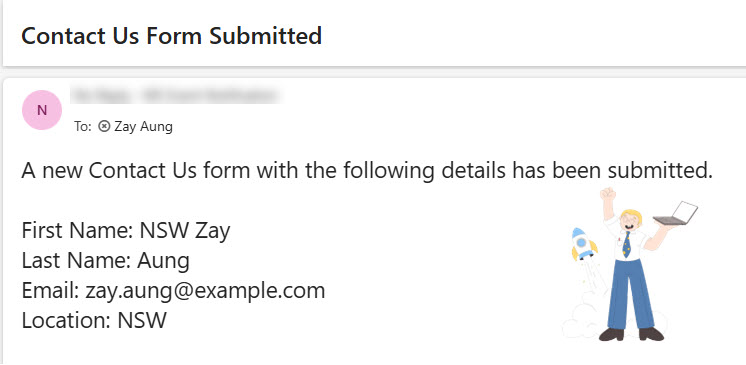
    If everything is working correctly, the internal email address (defined in the marketing form) should receive the email based on the contact’s location.

    Summary

    In this final post, we’ve:

    • Created and published the Real-time Journey
    • Submitted the form and verified each component:
      • Form submission
      • Journey trigger
      • Power Automate execution
      • Internal email delivery

    It’s just one of the examples, and you can reuse across similar scenarios – for example – event registration.

  • Sending Internal Email Upon Form Submission: Build Power Automate Flow (Part 3 of 4)

    Build Power Automate Flow

    In this post, we’ll walk through how to build a Power Automate flow to send emails to internal teams based on the contact’s location, as defined in the Real-time Marketing Form.

    We’ll create the flow within the same solution where we previously created the custom columns for the Contact and Form tables.

    Create Power Automate Flow

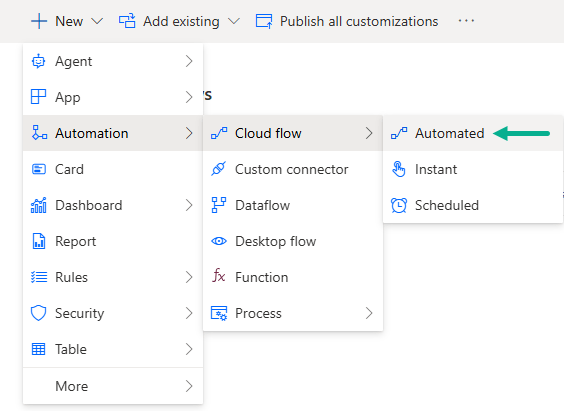
    • Go to Power Automate and create a new Automated Cloud Flow
    • Give it a name – in this example:
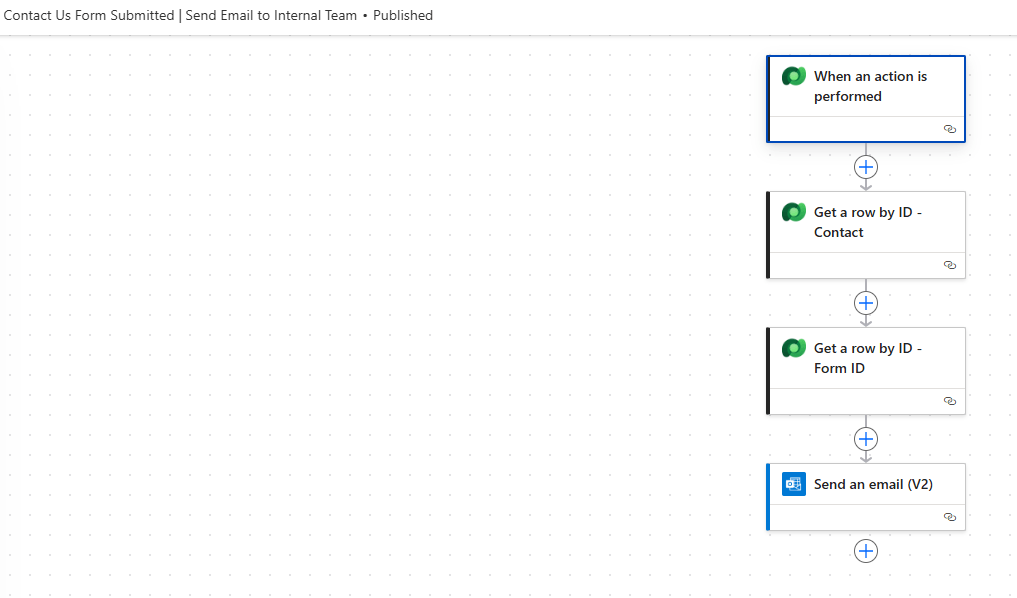
      • Flow Name: Contact Us Form Submitted | Send Email to Internal Team

    Flow Overview

    We’ll use the following actions in the flow:

    • When an action is performed (Custom Trigger)
    • Get a row by ID – Contact
    • Get a row by ID – Form ID
    • Send an email (V2)

    When an action is performed

    Here’re the definition of each action.

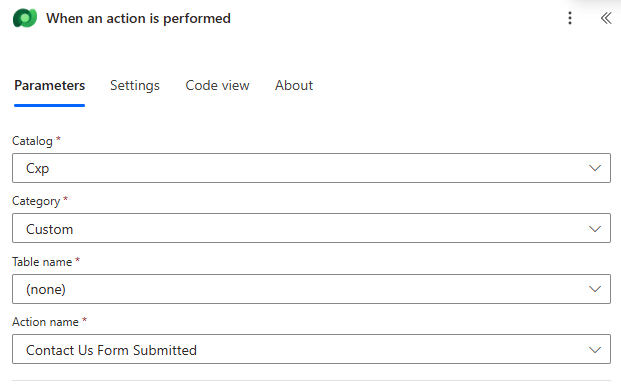
    • Add the When an action is performed action
    • Select the Custom Trigger we created in [Part 2] — in this case: Contact Us Form Submitted

    This ensures the flow runs every time the trigger is triggered in the Real-time Journey.

    Get a row by ID – Contact

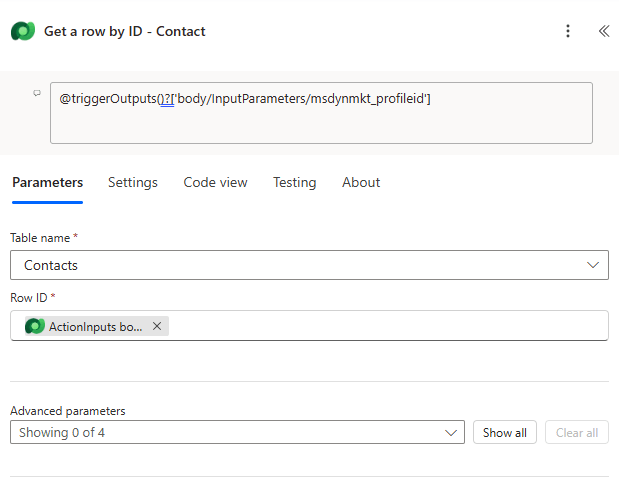
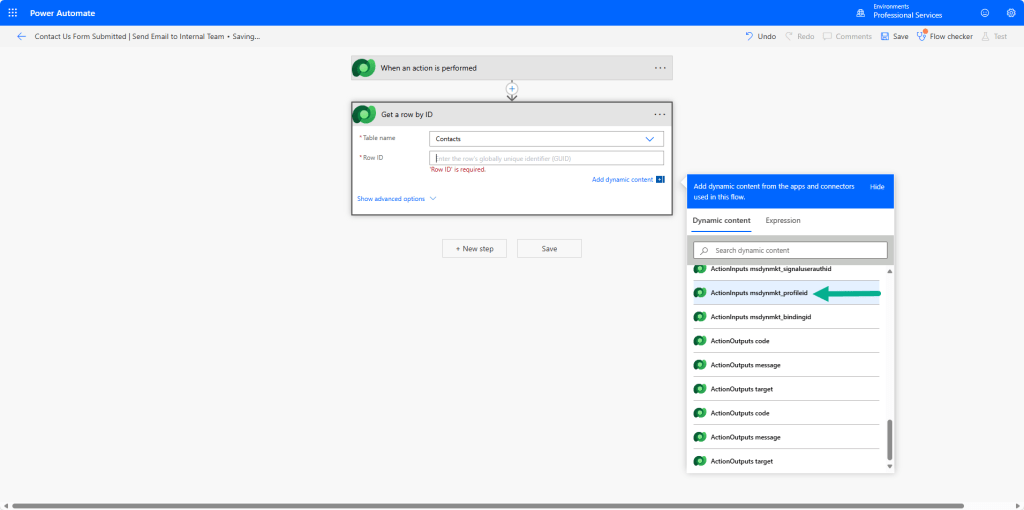
    • Add “Get a row by ID” action
    • Table name: Contacts
    • Row ID: ActionInputs msdynmkt_profileid (This retrieves the contact record based on the profile ID from the Real-time Form submission)

    Get a row by ID – Form ID

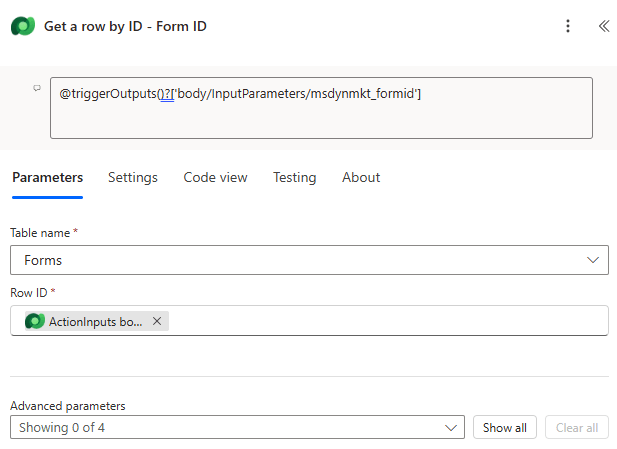
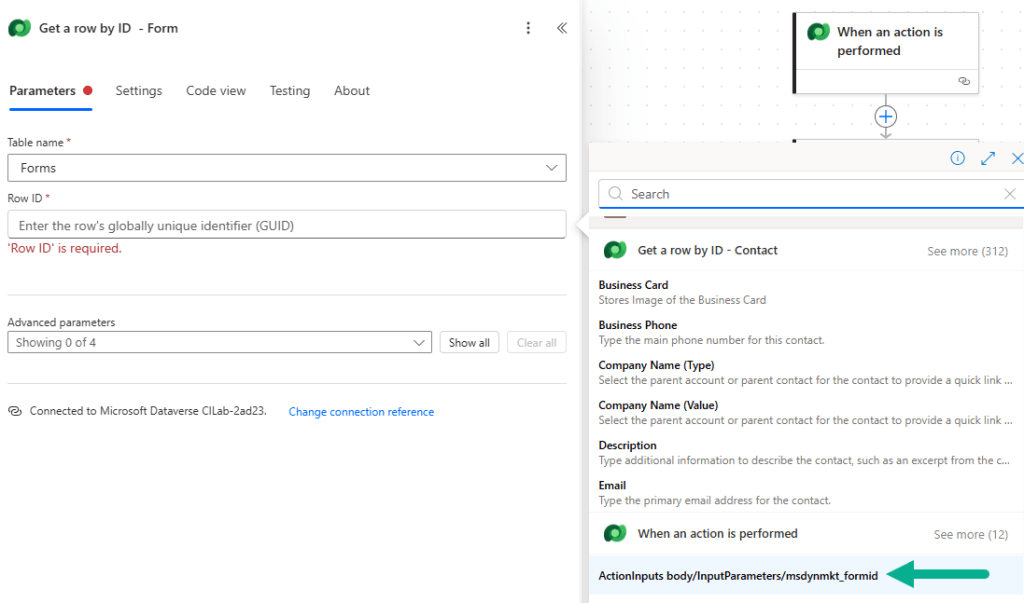
    • Add another “Get a row by ID” action
    • Table: Forms
    • Row ID: ActionInputs body/InputParameters/msdynmkt_formid (This retrieves the form used during the submission.)

    Send an email (V2)

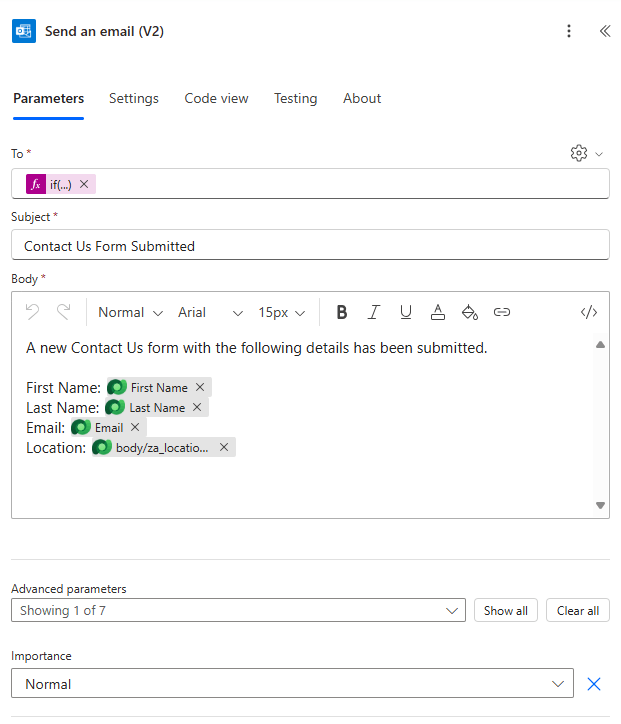
    • Add “Send an email (V2)” action
    • In the To field, I’ve used the following expression to dynamically select the internal email address defined in the Form based on the contact’s location:
    if(equals(outputs('Get_a_row_by_ID_-_Contact')?['body/za_location@OData.Community.Display.V1.FormattedValue'],'NSW'),outputs('Get_a_row_by_ID_-_Form_ID')?['body/za_nswcsemail'],if(equals(outputs('Get_a_row_by_ID_-_Contact')?['body/za_location@OData.Community.Display.V1.FormattedValue'],'VIC'),outputs('Get_a_row_by_ID_-_Form_ID')?['body/za_viccsemail'],if(equals(outputs('Get_a_row_by_ID_-_Contact')?['body/za_location@OData.Community.Display.V1.FormattedValue'],'QLD'),outputs('Get_a_row_by_ID_-_Form_ID')?['body/za_qldcsmail'],'')))

    This is optional depending on your use case. However, I’ve included the below expression to include the location in the body.

    outputs('Get_a_row_by_ID_-_Contact')?['body/za_location@OData.Community.Display.V1.FormattedValue']

    Once done, Publish the Flow.

    Summary and Next Steps

    In this post, we’ve:

    • Created a Power Automate flow that listens to a custom trigger
    • Retrieved Contact and Form data
    • Dynamically selected and sent an email to the appropriate internal team

    In the final post [Part 4], we’ll build the Real-time Journey and show how all components – the form, custom trigger, and flow – come together in action.

  • Sending Internal Email Upon Form Submission: Configure Custom Trigger (Part 2 of 4)

    Configure Custom Trigger

    This is the part 2 of this series. In this post, we’ll walk through how to create a Custom Trigger in Real-time Journeys. This trigger will later be used to call a Power Automate flow, which sends an internal email based on the contact’s location.

    Create the Custom Trigger

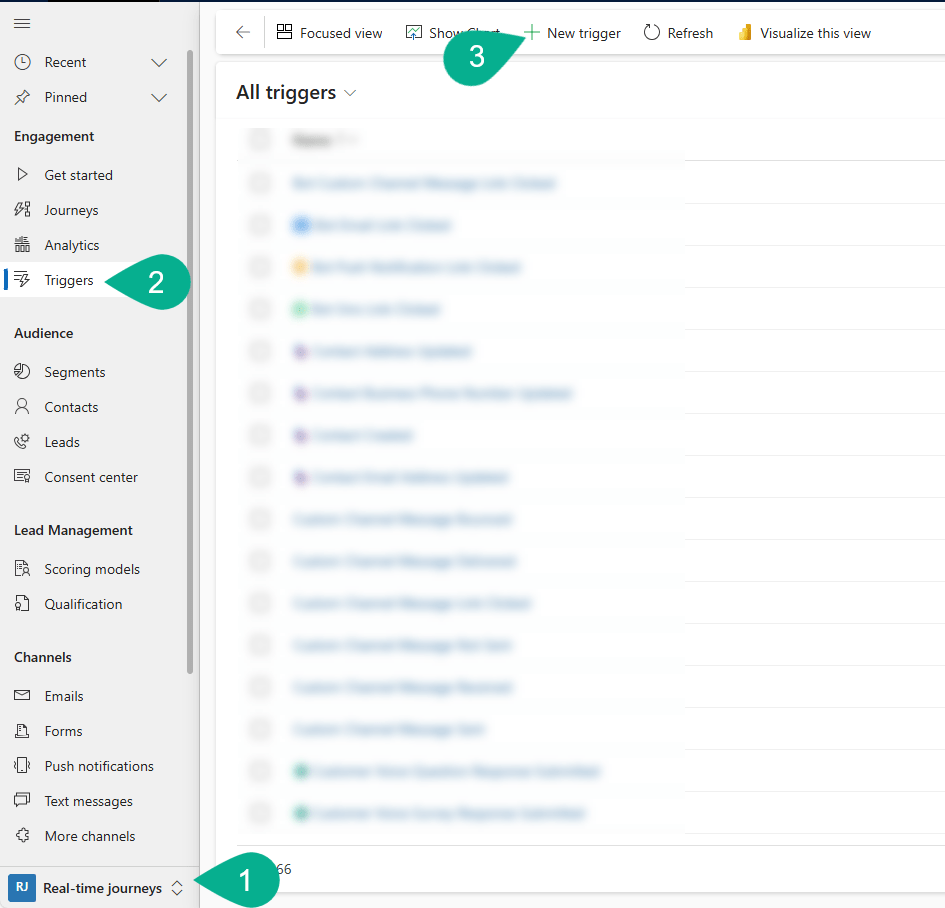
    1. Navigate to Real-time journeys area
    2. In the left pane, go to Engagement Triggers
    3. Click + New trigger
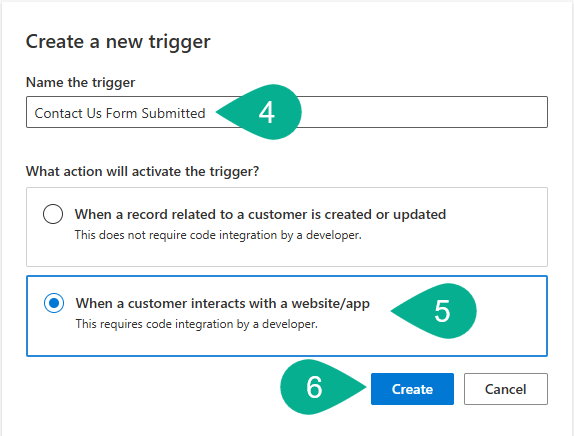
    1. Enter a name for your trigger
    2. Select “When a customer interacts with a website/app option”
    3. Click Create

    Configure the Trigger

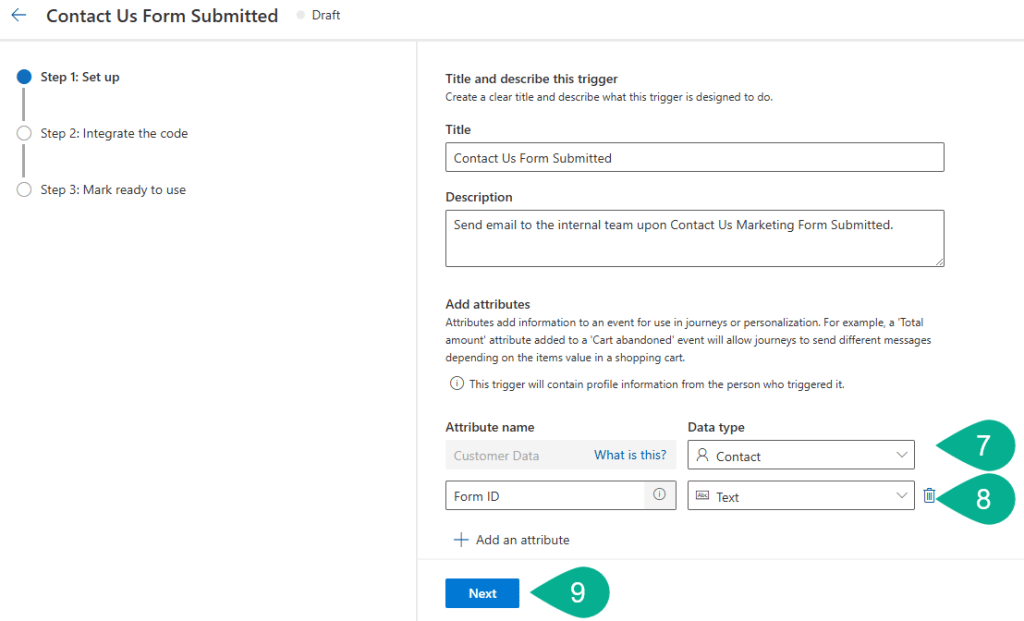
    1. Under the Customer data section, select Contact
    2. Create a new attribute and give name called Form ID. Select Text data type
    3. Click Next
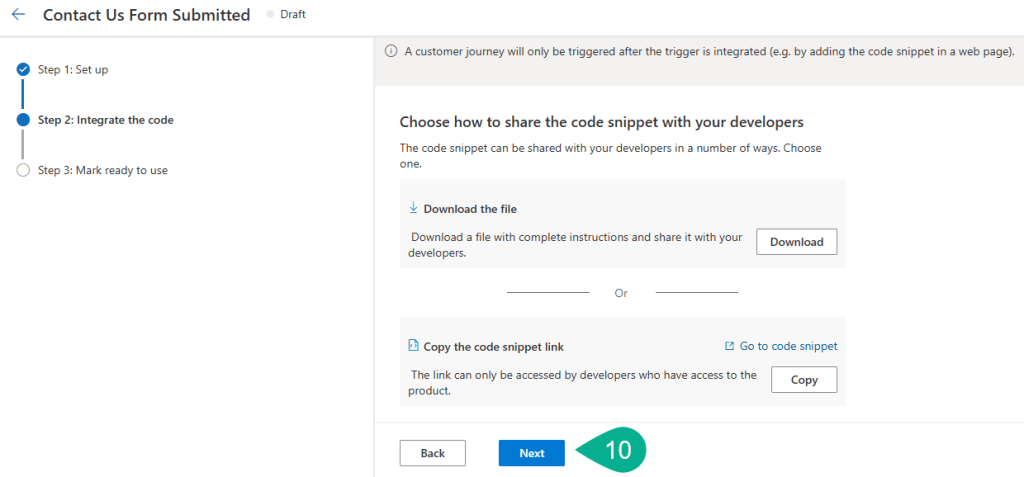
    1. Click Next as we’re not going to integrate with a web page.
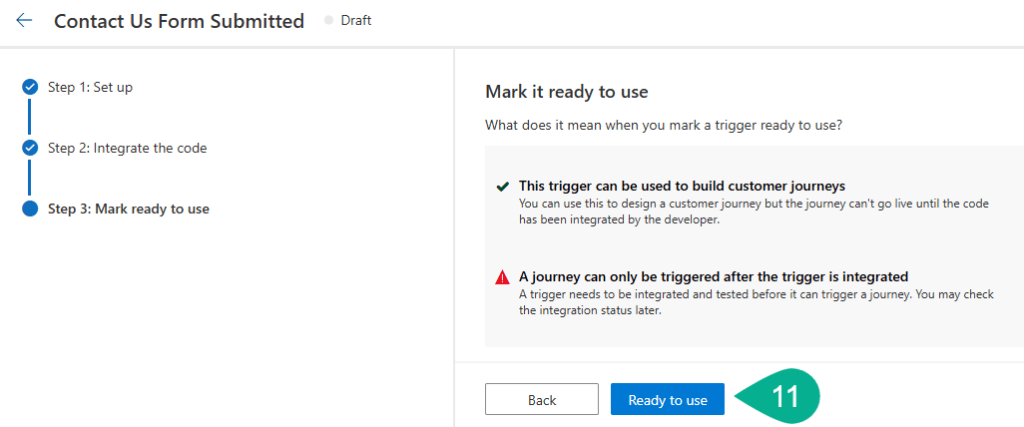
    1. Click Ready to use

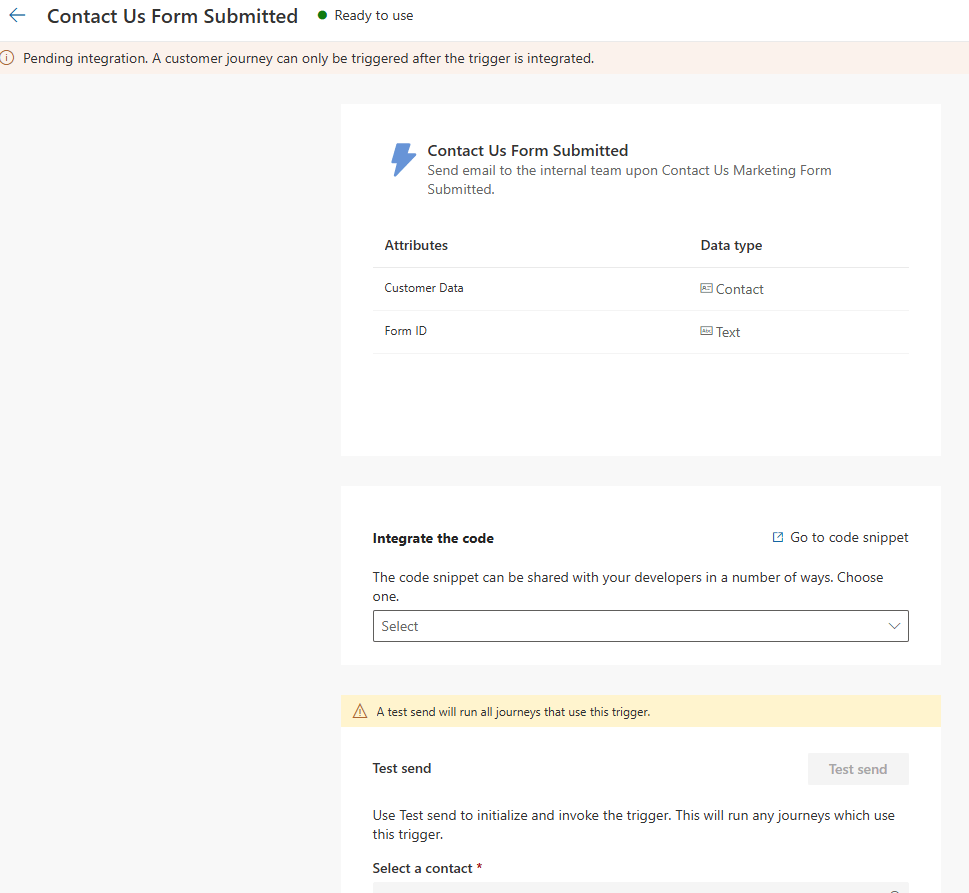
    Once ready, the Status of the trigger will update to Ready to use, confirming it’s active and available for use in your Real-time Journey.

    Summary and Next Steps

    In this post, we’ve created a Custom Trigger that will serve as the connection point between the Real-time Journey and Power Automate.

    In the next postBuild Power Automate Flow (Part 3), we’ll build a Power Automate flow that listens to this trigger and sends an email to the appropriate internal team based on the contact’s location.

  • Sending Internal Email Upon Form Submission: Customise Real-time Marketing Form (Part 1 of 4)

    Customise Real-time Marketing Form

    In this blog series, I’ll walk you through how to send emails to internal users or teams based on a contact’s Location – for example, if the location is NSW, the system will send an email to the NSW Customer Service Team – upon Form submission in Real-time Customer Insights – Journeys. We’ll achieve this by using a Custom Trigger in combination with Power Automate.

    Note: Although this example is based on Form submissions, the same concept applies to other trigger points like Event Registrations.

    Series Overview

    I’ve broken this topic down into the following parts:

    1. Customise Real-time Marketing Form <- You are here
    2. Configure Custom Trigger
    3. Build Power Automate Flow
    4. Create Real-time Journey

    This is the first post of this series and will focus on Customise Real-time Marketing Form.

    Create Custom Columns in Dataverse

    Before customising the Form, let’s create some columns in Dataverse to store the internal email addresses.

    I won’t go into detail on how to create Dataverse columns using Power Apps, as there are already plenty of well-documented resources available.

    As best practice, create a Solution first and then add the new columns within that solution to enable easy packaging and deployment across environments.

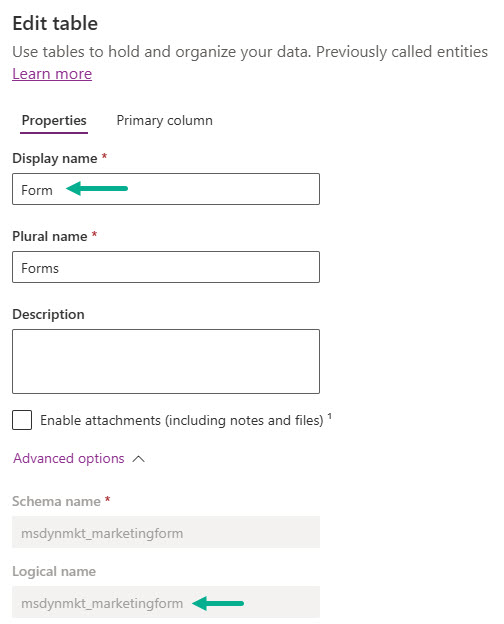
    Note: Make sure you create in the correct Form table i.e., Logical name = msdynmkt_marketingform.

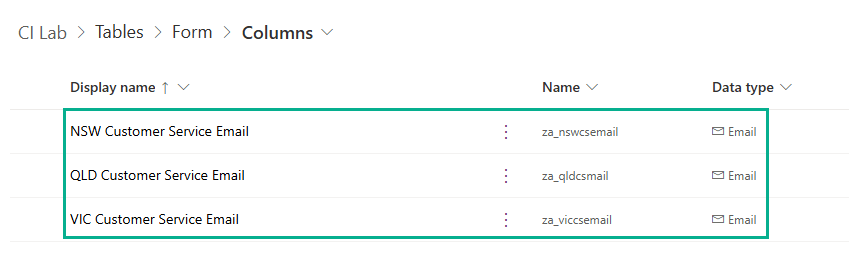
    In this example, I’ve created the following three columns – all are the same configuration: Data type = Single line of text and Format = Email. Column names:

    • NSW Customer Service Email
    • QLD Customer Service Email
    • VIC Customer Service Email

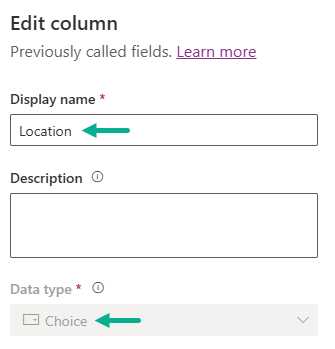
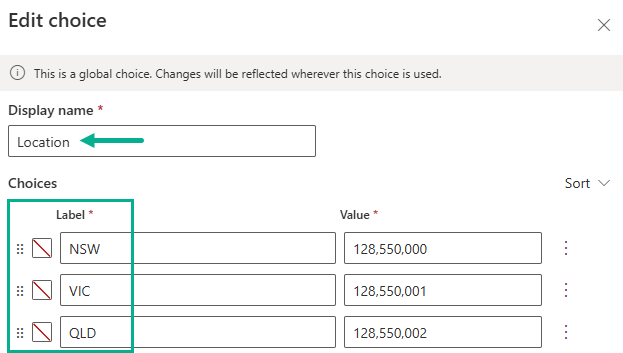
    Additionally, we will also create a custom column in the Contact table called Location where Data Type = Choice, which will store the Location of the Contact.

    Add Columns to the Form

    Now, let’s include the three email columns in the Real-time Marketing Form.

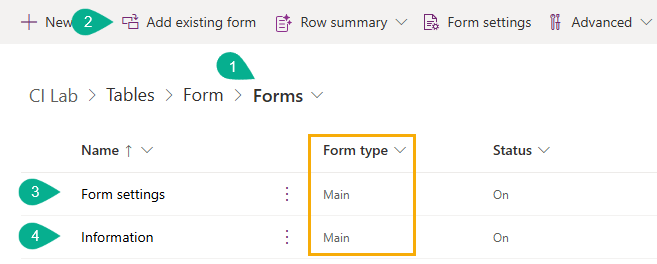
    1. Click Forms in Form table
    2. Click Add existing form
    3. Add Form settings
    4. Add Information

    Note: Make sure you select Form type = Main

    Configure Form Settings

    Now, we’re going to configure Form settings Form.

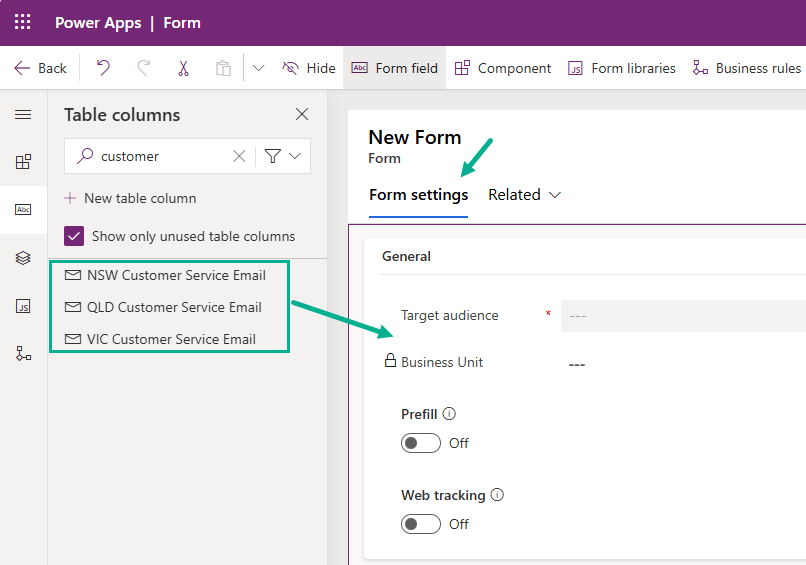
    • Open Form settings
    • Click Form settings tab
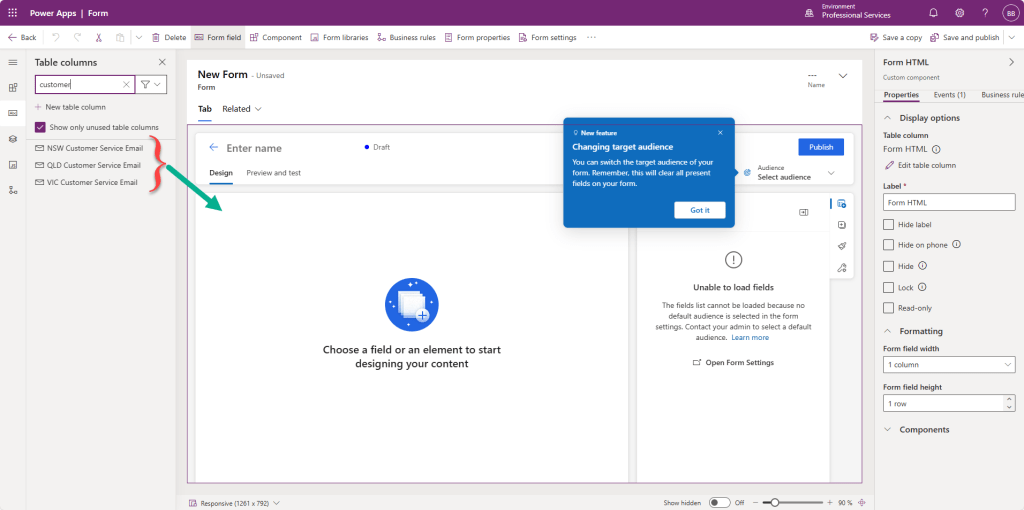
    • Drag and drop the following three columns just below of Target audience column
      • NSW Customer Service Email
      • QLD Customer Service Email
      • VIC Customer Service Email
    • Click Save and publish.

    Configure Information Form

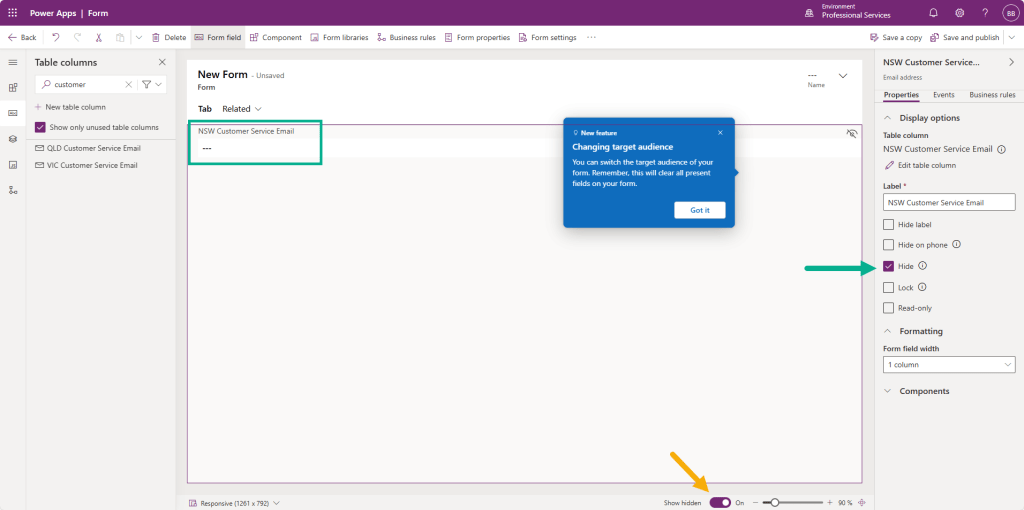
    • Open Information Form
    • Drag and drop NSW Customer Service Email onto the Form
    • On the right panel, check Hide under Display options
    • (Optional Tip: Set Show hidden = On to verify if the column is already added.)
    • Repeat for the QLD and VIC email columns
    • Click Save and Publish

    Create the Contact Us Form

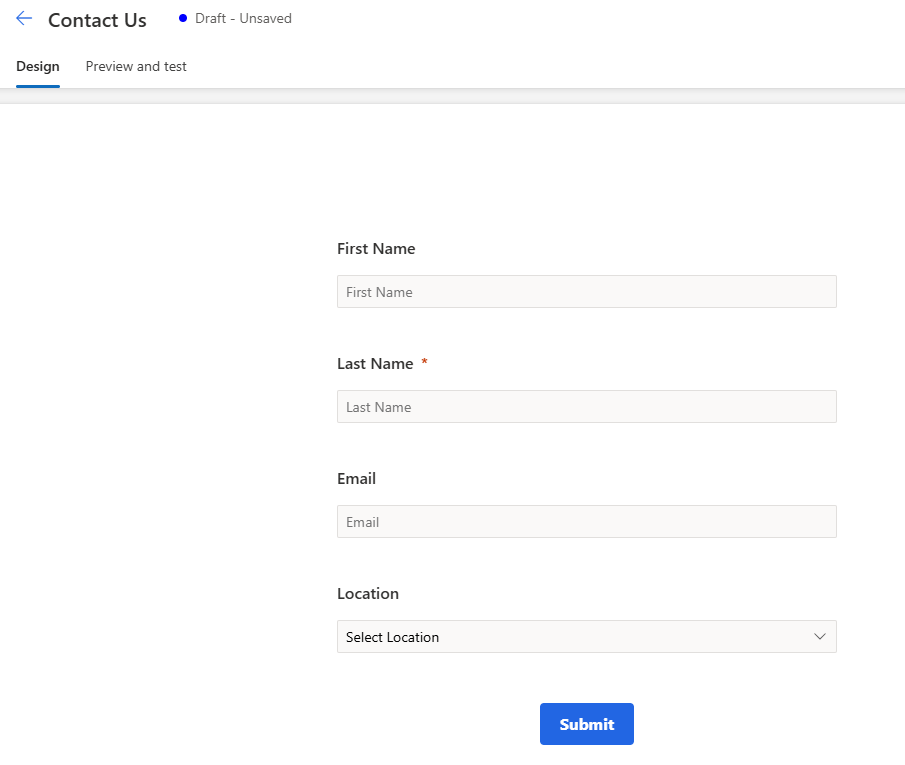
    Now, create a basic Contact Us form with the following fields: First Name, Last Name, Email and Location (the custom field that we created in the above) and Submit button.

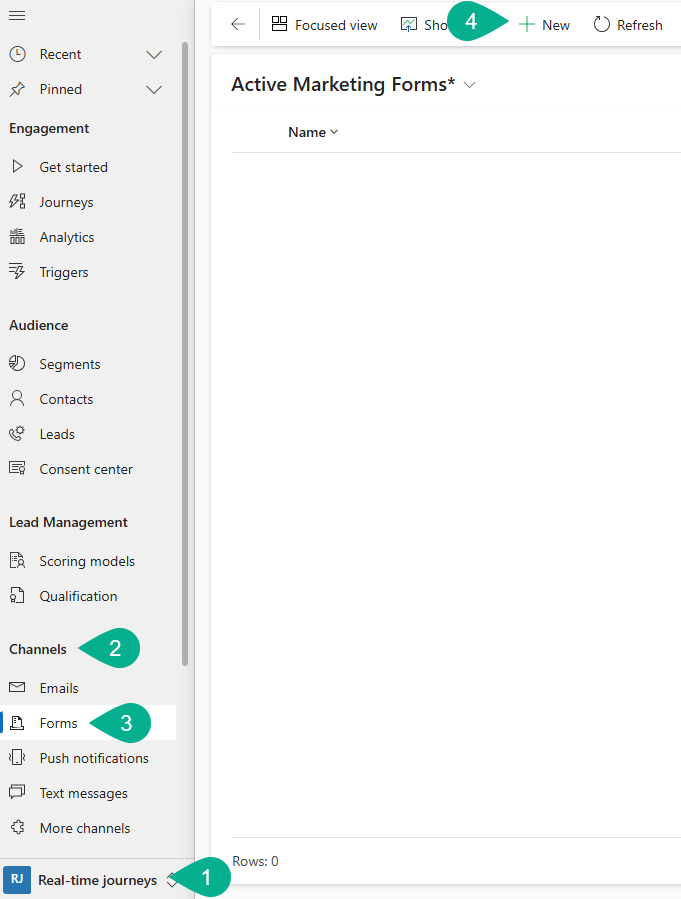
    Follow the below steps.

    1. Go to Real-time journeys
    2. Go to Channels
    3. Go to Forms
    4. Click [+New]

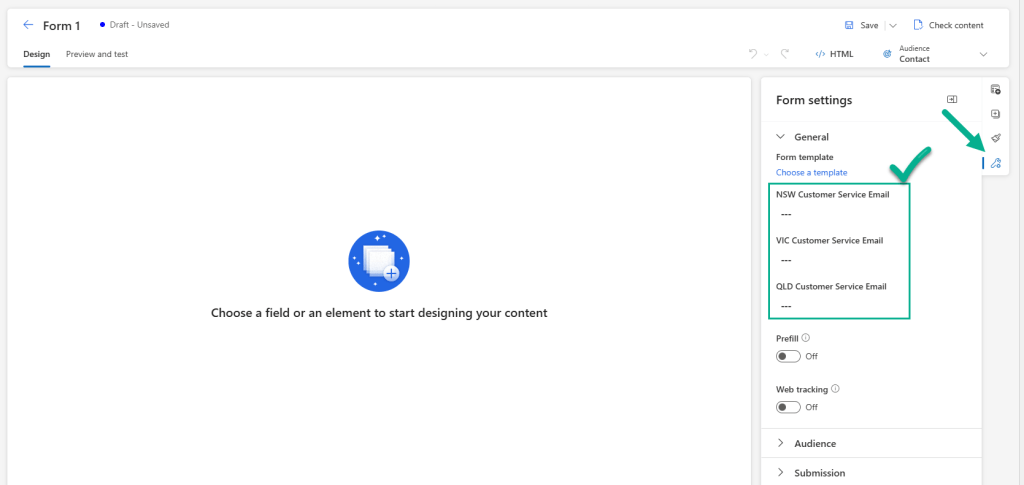
    Before adding fields, go to Form settings and confirm that the three internal email columns are included.

    Then drag and drop the necessary fields onto the canvas.

    Once done and no error, click Publish to be ready to be used. We’ll come back to the Form once we’ve set up other components for the result.

    Summary and Next Steps

    In this post, we’ve:

    • Created three internal email fields in Dataverse.
    • Created a Location field in the Contact table.
    • Customised the real-time marketing form to include internal fields.
    • Created the basic Contact Us form.

    In the next post – Configure Custom Trigger (Part 2), we will walk through how to create a Custom Trigger to use within the Real-time Journey – extending functionality to Power Automate Flow.