

Build Power Automate Flow
In this post, we’ll walk through how to build a Power Automate flow to send emails to internal teams based on the contact’s location, as defined in the Real-time Marketing Form.
We’ll create the flow within the same solution where we previously created the custom columns for the Contact and Form tables.
Create Power Automate Flow
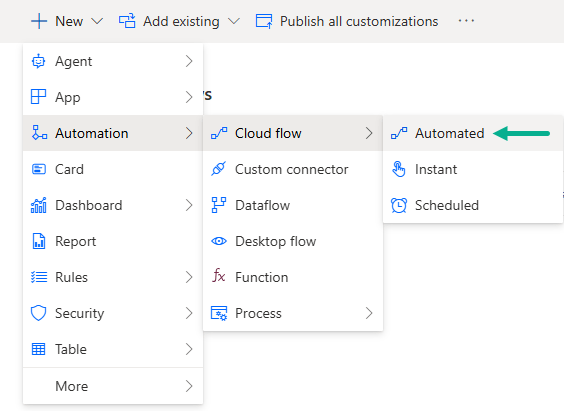
- Go to Power Automate and create a new Automated Cloud Flow
- Give it a name – in this example:
- Flow Name: Contact Us Form Submitted | Send Email to Internal Team
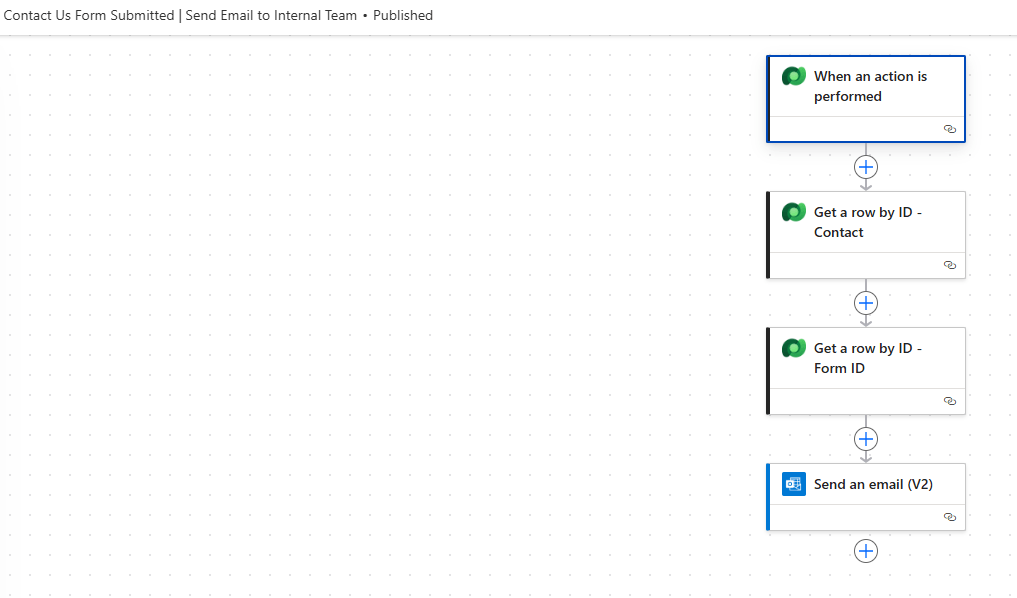
Flow Overview
We’ll use the following actions in the flow:
- When an action is performed (Custom Trigger)
- Get a row by ID – Contact
- Get a row by ID – Form ID
- Send an email (V2)
When an action is performed
Here’re the definition of each action.
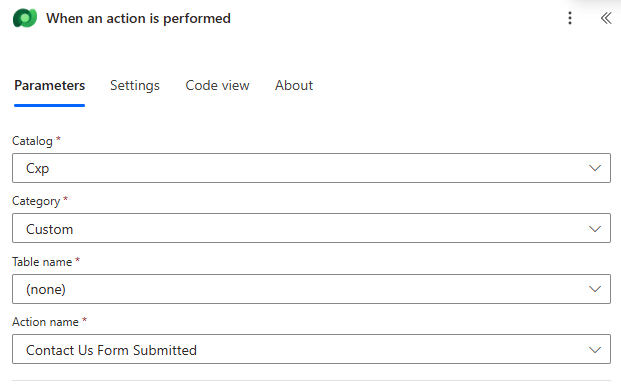
- Add the When an action is performed action
- Select the Custom Trigger we created in [Part 2] — in this case:
Contact Us Form Submitted
This ensures the flow runs every time the trigger is triggered in the Real-time Journey.
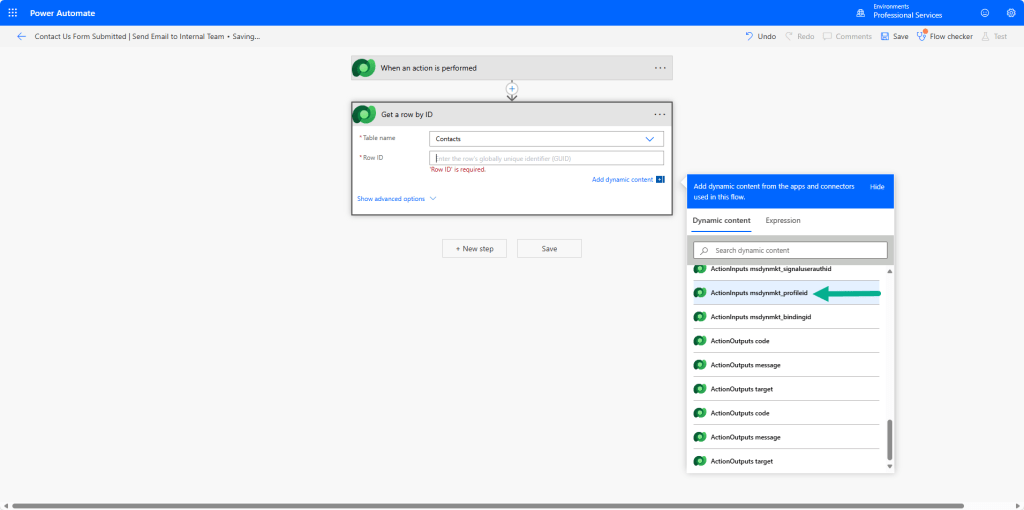
Get a row by ID – Contact
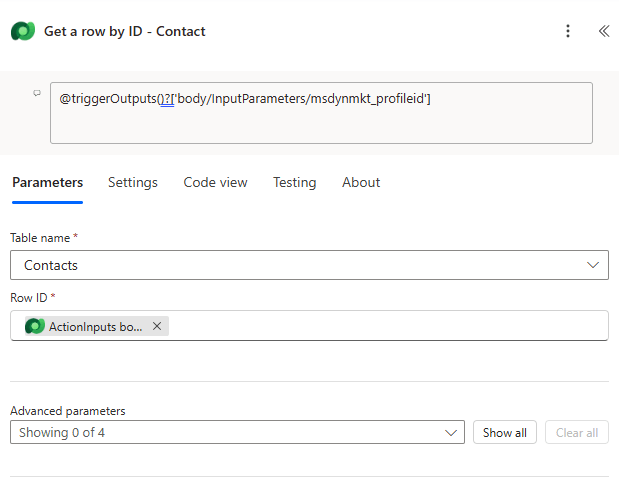
- Add “Get a row by ID” action
- Table name: Contacts
- Row ID:
ActionInputs msdynmkt_profileid(This retrieves the contact record based on the profile ID from the Real-time Form submission)
Get a row by ID – Form ID
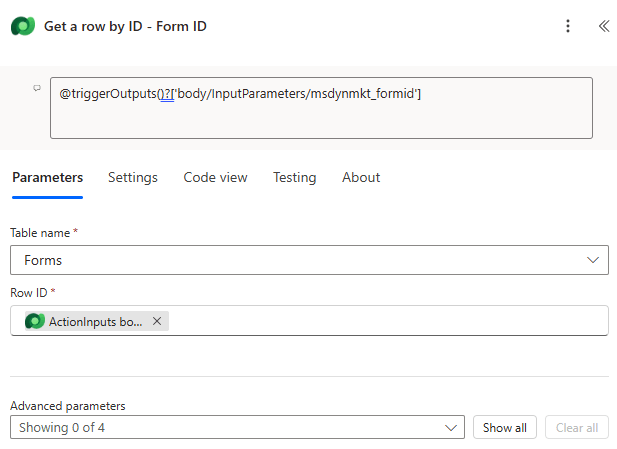
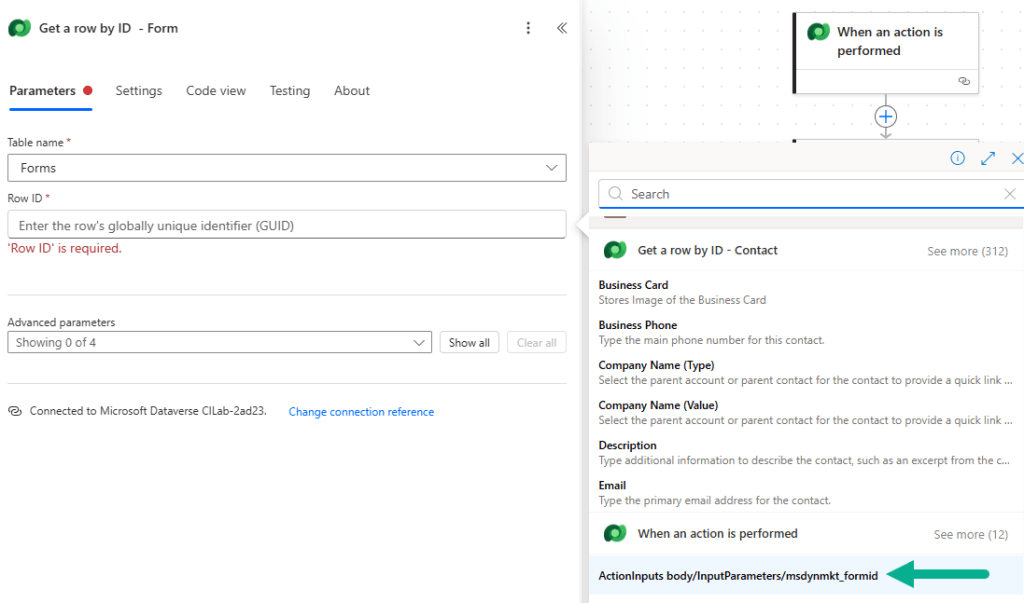
- Add another “Get a row by ID” action
- Table:
Forms - Row ID:
ActionInputs body/InputParameters/msdynmkt_formid(This retrieves the form used during the submission.)
Send an email (V2)
- Add “Send an email (V2)” action
- In the To field, I’ve used the following expression to dynamically select the internal email address defined in the Form based on the contact’s location:
if(equals(outputs('Get_a_row_by_ID_-_Contact')?['body/za_location@OData.Community.Display.V1.FormattedValue'],'NSW'),outputs('Get_a_row_by_ID_-_Form_ID')?['body/za_nswcsemail'],if(equals(outputs('Get_a_row_by_ID_-_Contact')?['body/za_location@OData.Community.Display.V1.FormattedValue'],'VIC'),outputs('Get_a_row_by_ID_-_Form_ID')?['body/za_viccsemail'],if(equals(outputs('Get_a_row_by_ID_-_Contact')?['body/za_location@OData.Community.Display.V1.FormattedValue'],'QLD'),outputs('Get_a_row_by_ID_-_Form_ID')?['body/za_qldcsmail'],'')))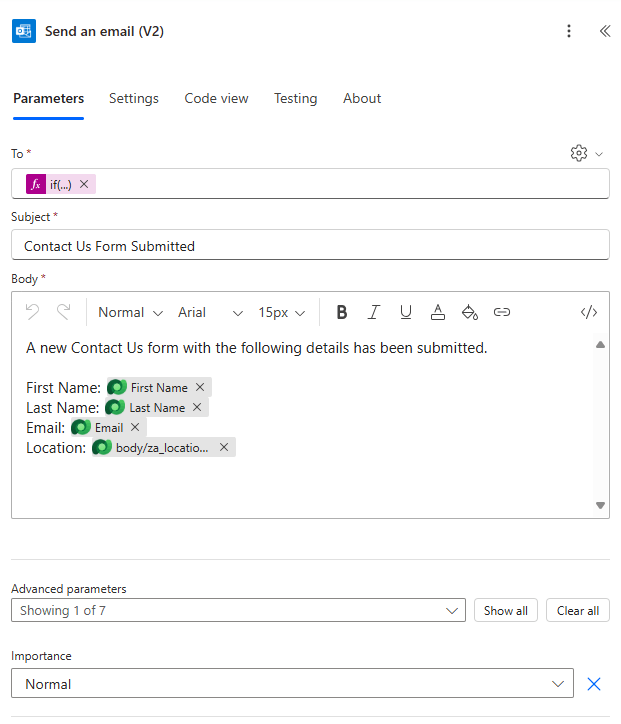
This is optional depending on your use case. However, I’ve included the below expression to include the location in the body.
outputs('Get_a_row_by_ID_-_Contact')?['body/za_location@OData.Community.Display.V1.FormattedValue']Once done, Publish the Flow.
Summary and Next Steps
In this post, we’ve:
- Created a Power Automate flow that listens to a custom trigger
- Retrieved Contact and Form data
- Dynamically selected and sent an email to the appropriate internal team
In the final post [Part 4], we’ll build the Real-time Journey and show how all components – the form, custom trigger, and flow – come together in action.
 Zay Aung